
QA Hub: A Supervisors Guide
Overview
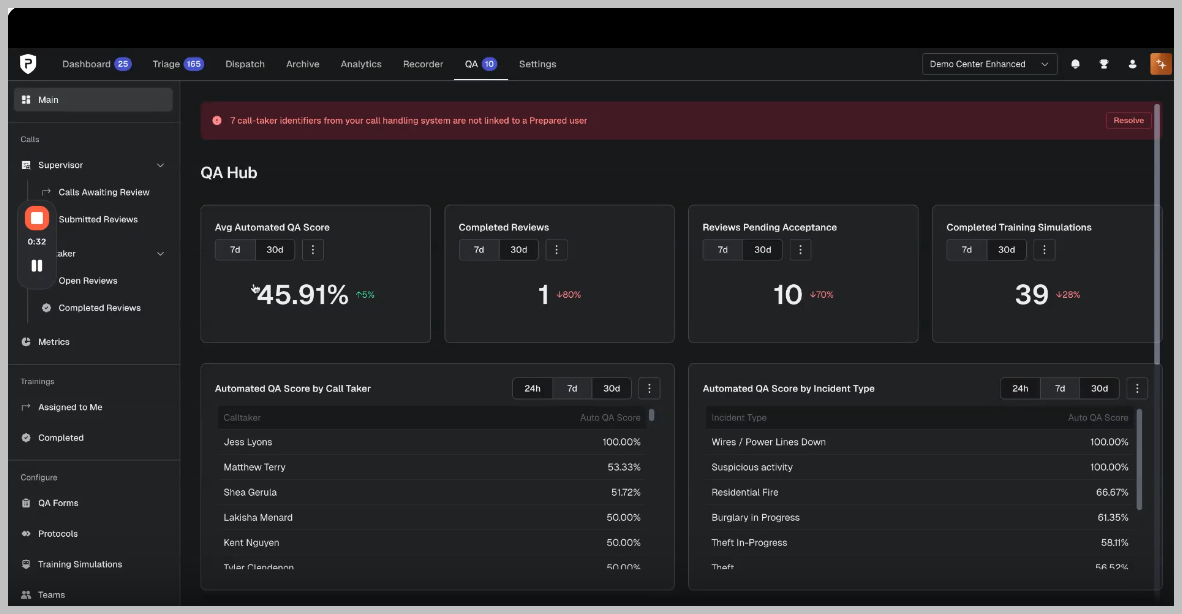
The QA (Quality Assurance) Hub is your centralized workspace for managing quality reviews, tracking performance, and accessing training tools—all in one place.
This new experience replaces the previous Training tab and introduces faster workflows, improved visibility, and simplified navigation.
Getting Started
How to Access the QA Hub
Log in to your platform
Navigate to the top menu
Click the QA tab

You will land on the QA Hub, your starting point for all QA activity.
Understanding the QA Hub
At the top of the QA Hub, you’ll see key metrics:
Average QA Score
Completed Reviews
Pending Reviews
Completed Training Simulations
Each key metric can be filtered by:
Defaults to the past 7 days, but can be filtered by
30
90
past year
custom dates
You may compare against
None
Previous Week
Totals
%
Below that:
QA performance by Call Taker
QA performance by Incident Type
If call taker data is missing, contact your administrator to configure IDs.
Navigating QA Features (Left Menu)
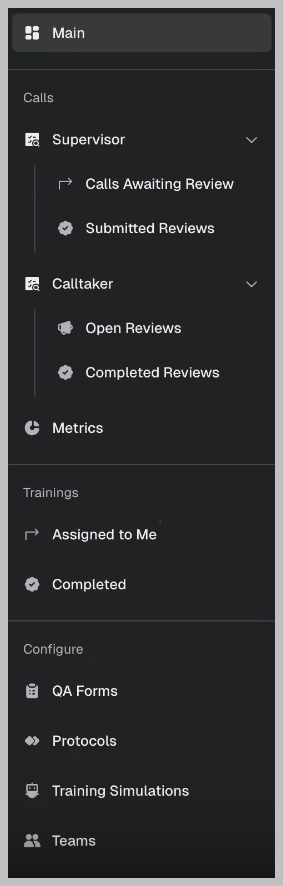
The left navigation panel gives you access to:
Calls Awaiting Review – Your active queue
Disputes – Reviews under dispute
All Reviews – Full history with filters
Call Taker Reviews – Reviews about you
Switch between these without leaving the page.
Only Supervisors can see ALL reviews. Call Takers will only see their reviews.
Managing Reviews
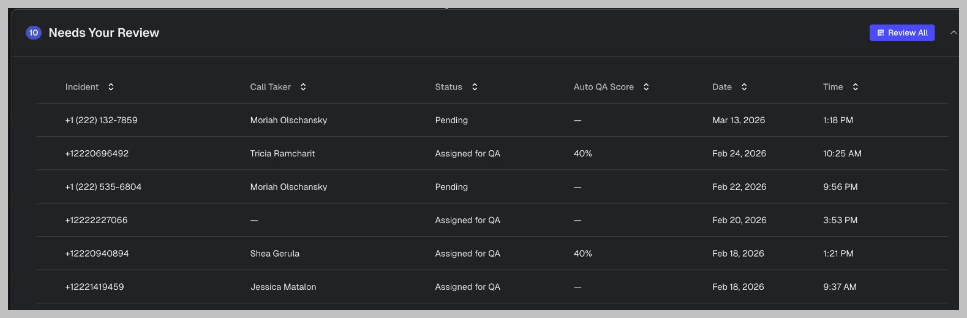
How to View Your Review Queue
Go to the QA Hub
Locate the Review Table
Identify review types:
Pending Acceptance
Assigned Reviews
Disputed Reviews
How to Review All Calls (Fastest Workflow)
In the review table, click Review All
The system will open the multi-call review screen
Complete the QA form for the first call
Click Submit
The system will automatically advance through each call in your queue until all selected calls are completed.
Use this option when you want to work through your entire queue without manually selecting calls.
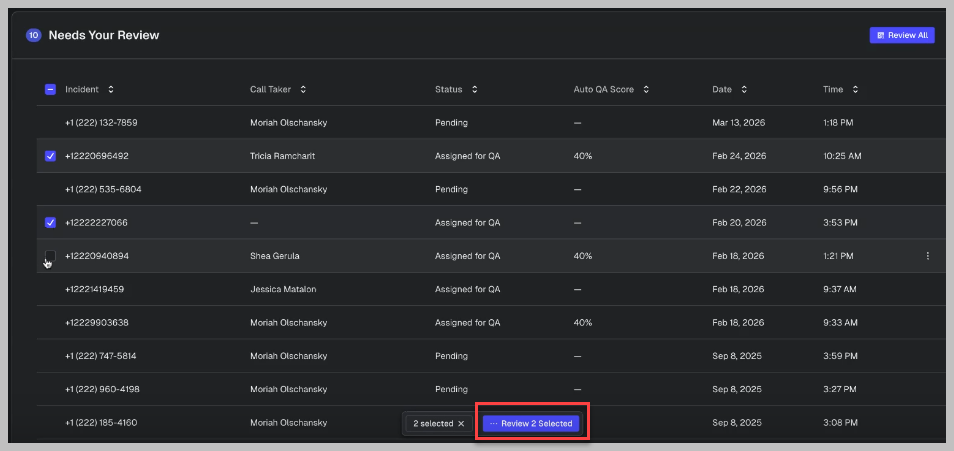
How to Review Multiple Calls (Selected Workflow)
In the review table, select multiple calls
Click “Review Selected”
Complete the QA form for the first call
Click Submit
The system automatically advances to the next call
This allows you to process reviews quickly without returning to the queue.
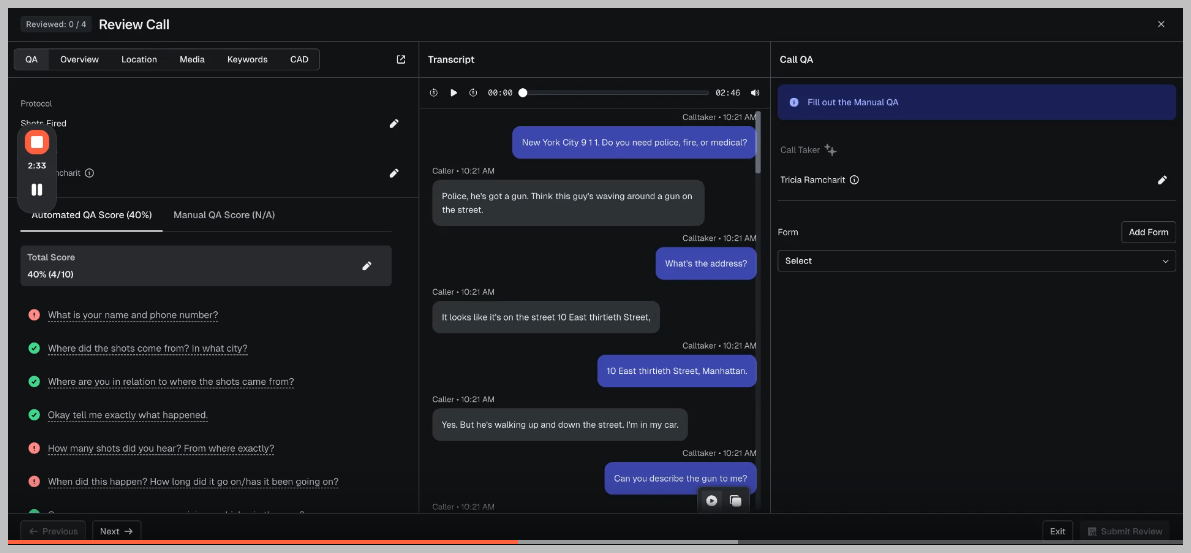
How to Review a Single Call
Click on a call in your queue
The 3-pane review screen will open:
Left: QA details with auto or manual QA scores
Center: Transcript + audio
Right: QA form
Play the call and follow along with the transcript
Complete the QA form
Click Submit
Using the Transcript Player
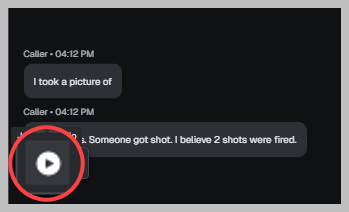
How to Navigate a Call Transcript
Click Play
Click anywhere in the transcript to jump to that moment
The audio will sync automatically
This makes it easier to locate key moments in the call.
Using Metrics & Analytics
How to View Detailed Metrics
Click Metrics
You’ll be redirected to the Analytics section
Use filters to analyze:
Individual performance
Incident trends
QA scoring patterns
Training in the AQA Hub
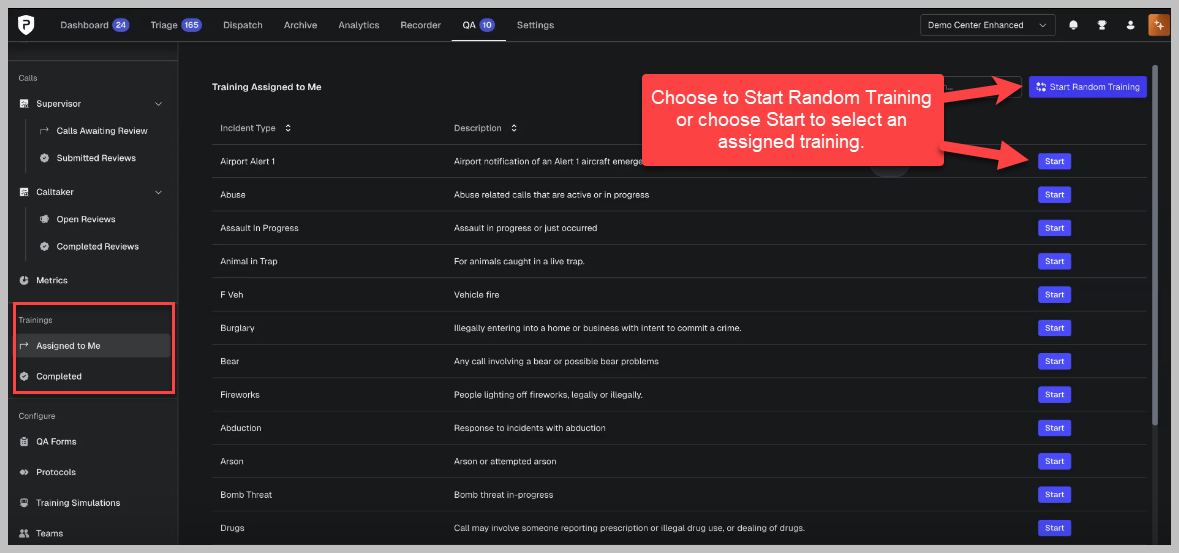
How to Start Training
Navigate to the left panel to Training
Select Assigned to Me
A list view of assigned training will be listed
Click Start Random Training or choose a course and click Start
Complete the simulation
How to View Completed Training
Go to Training
Scroll to Completed Trainings
Review past sessions
Call takers will only see their own training history.
Accessing Configuration Tools
All setup tools are now centralized:
How to Access QA Settings
Go to the QA Hub
Scroll to the configuration section
Select any of the following:
Forms
Protocols
Training Simulations
Teams
User IDs
You’ll be redirected to the correct settings page
Best Practices
Review calls in batches using “Review Selected” to save time
Use transcript scrubbing to find key moments quickly
Regularly check Pending Reviews to avoid a backlog
Ensure call taker IDs are configured for accurate reporting
Encourage call takers to review and accept feedback promptly