
Call Taker Identification Setup (CallTaker ID)
Product: ALL
Audience: Call Takers, Dispatchers, Supervisors, Administrators
Last Updated: 04/08/2026
Support: Support@prepared911.com
Overview
Call Taker Identification (CallTaker ID) enables Prepared to associate emergency calls with individual dispatchers.
This powers:
Automated QA feedback by the user
Dispatcher-level analytics and reporting
Supervisor coaching and performance tracking
Without CallTaker ID, these workflows require manual input and are significantly limited.
What’s New
Customers can now self-initiate CallTaker ID setup directly in the product.
Navigate to:
Analytics → All Incidents → Call Taker (right sidebar)
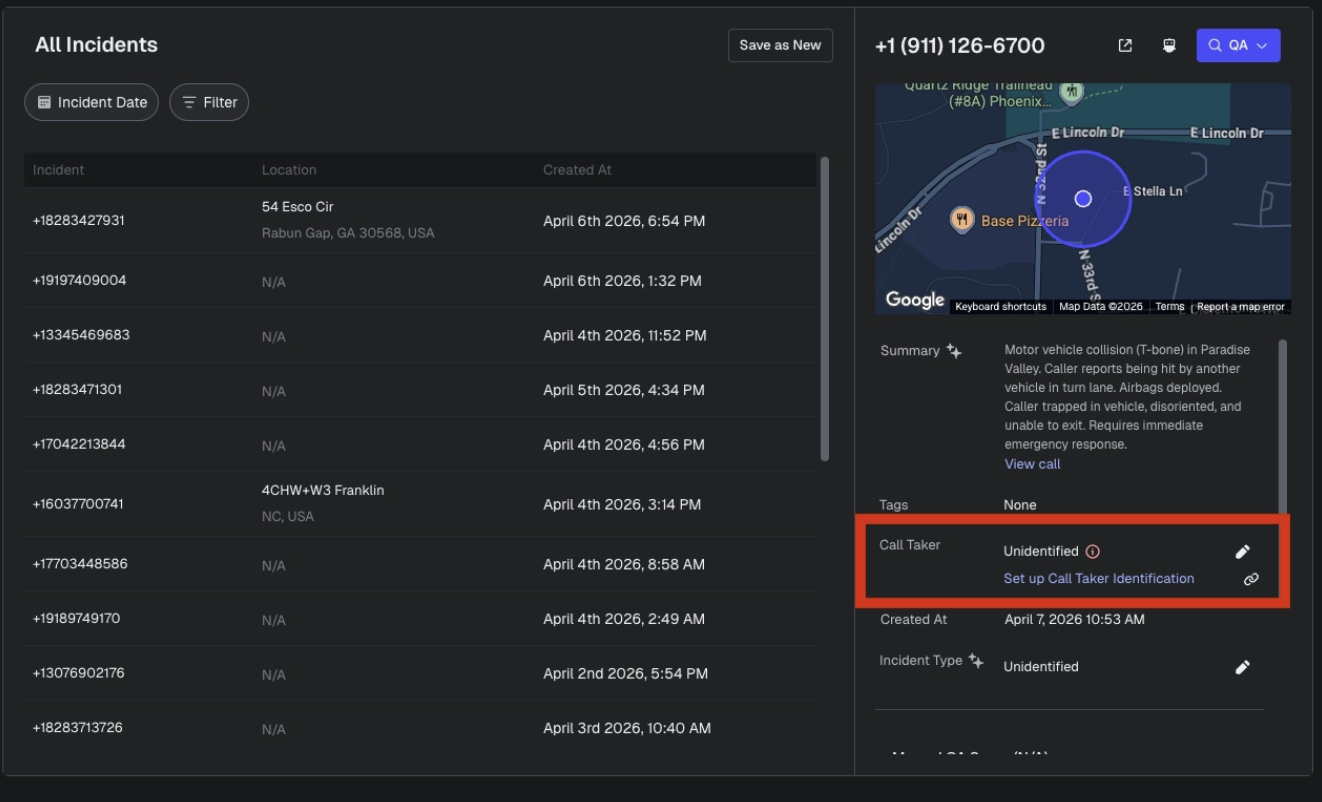
If setup is required or an issue is detected, you’ll see an actionable prompt allowing you to submit a request.
Submitting a request will:
Automatically create a Support ticket
Notify the appropriate teams
Begin the setup or troubleshooting process
What You’ll See in the Product
1. “Set up Call Taker Identification”
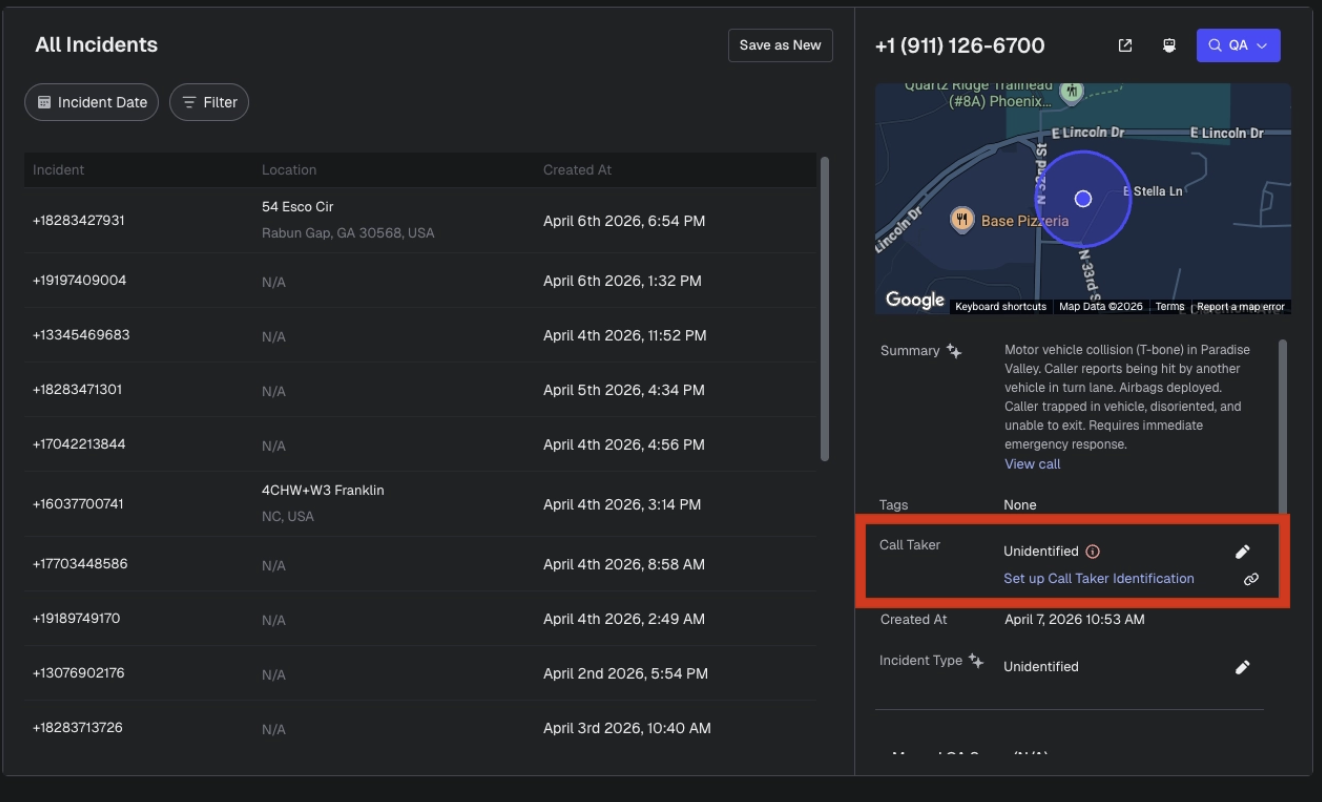
Meaning:
No Call Detail Record (CDR) feed exists yet.
What to do:
Click the prompt and submit the setup form to begin configuration.
2. “Call Taker Identification Feed Issue”
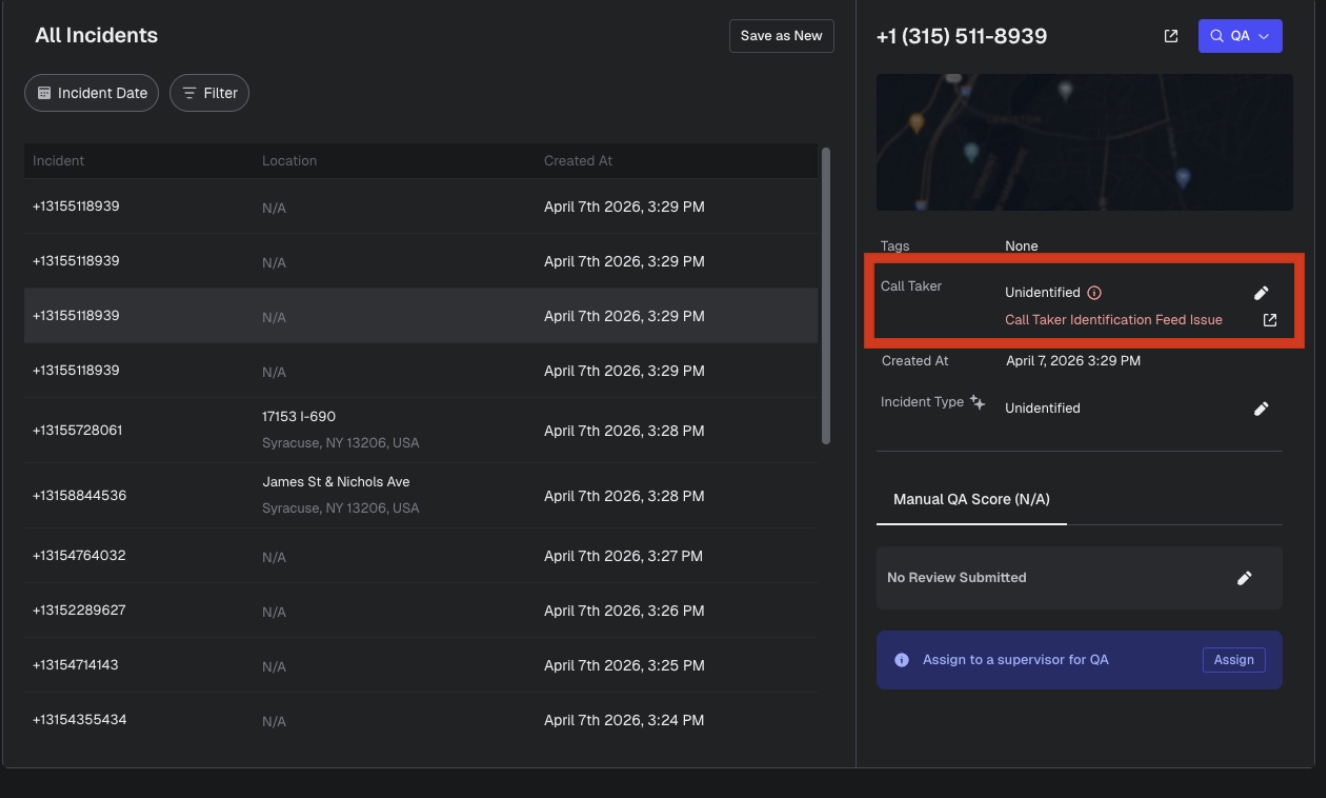
Meaning:
A feed was previously configured but is not currently working.
What to do:
Submit the form to alert Support and initiate troubleshooting.
3. “Unidentified” on Calls
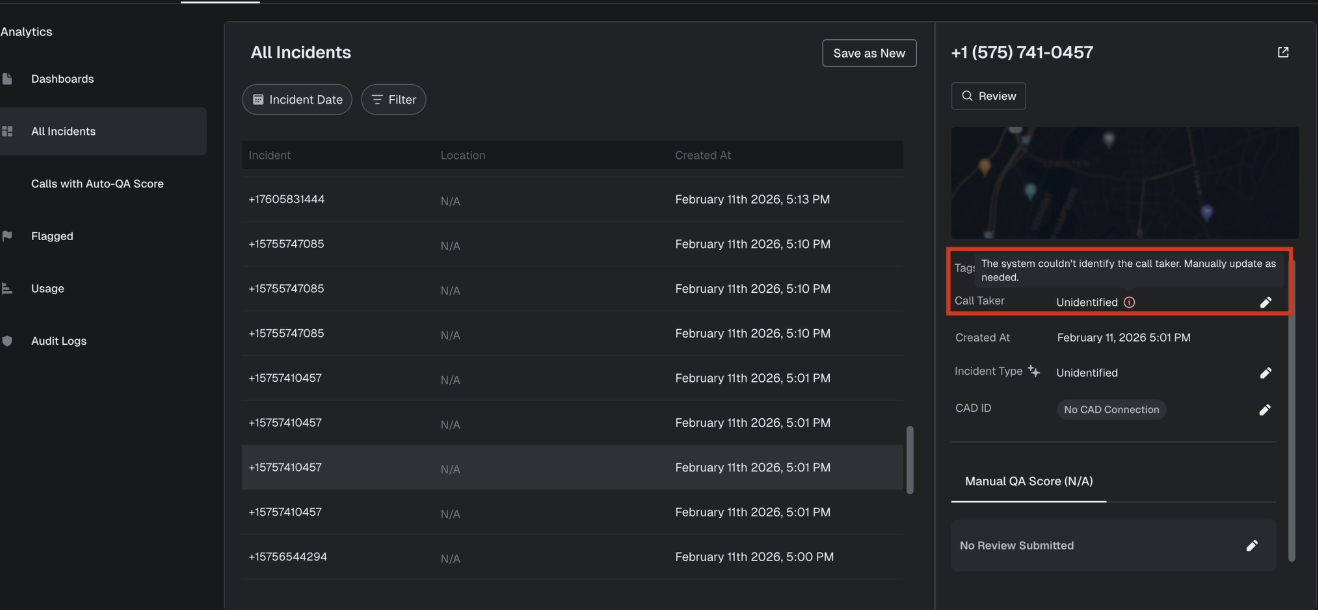
Meaning:
A feed exists, but calls are not reliably matched to dispatchers.
What to do:
Contact Support for investigation.
How CallTaker Identification Works
Prepared identifies call takers using one of the following:
1. CDR (Call Detail Record) — Primary Method
A system-generated log from your call handling equipment that includes:
Which user answered the call
Call timestamps (arrival, answer, transfers)
Does NOT include audio or CAD data
2. SIP Extension Mapping
If your center has stable extensions mapped to users, you can provide a mapping file for identification.
3. CAD Data
If CAD integration is enabled, dispatcher identification may be derived from CAD records.
When Setup Is Required
CallTaker ID setup is required for:
All new QA customers
All new ACT customers
Existing centers are being upgraded for QA/Analytics
What Happens After You Submit a Request
Once you submit the form:
A Support ticket is automatically created
Support reviews and triages the request
Your IT contact may be looped in
The request is handed off to Implementation
Implementation coordinates technical setup or fixes
What You May Be Asked For
To complete setup, your team may need to provide:
Call Handling Equipment (CHE) provider
IT contact information
CDR feed availability (port or network connection)
Connection type (Serial, TCP/IP, etc.)
SIP extension mapping (if available)
Common Issues & Causes
If the CallTaker ID is partially working or inconsistent, common causes include:
Missing or incomplete CDR data
System timing mismatches
Calls are abandoned before being answered
Configuration or mapping issues
Systems that do not include dispatcher names in logs
Support & Escalation
If you experience issues:
Submit a request directly from the product (recommended)
Or contact Support@prepared911.com
Support will:
Identify your scenario
Route your request appropriately
Coordinate with Implementation and Engineering
Best Practices
Ensure your IT contact is included in all communications
Provide SIP extension mapping if available
Respond promptly to setup questions to avoid delays
Keep all stakeholders (Supervisors, IT, CSM) on the thread
Outcome
Once the CallTaker ID is configured correctly, you will be able to:
View dispatcher names across all incidents
Run user-level analytics and reporting
Deliver targeted QA feedback
Improve performance tracking and coaching
Need Help?
Reach out to Support@prepared911.com or use the in-product setup prompts to get started.