
Resolving Caller Permissions Errors
Product: Prepared Live
Audience: Supervisors, Dispatchers, Call Takers, and Administrators
Last Updated: 03/04/2025
Outcome Statement
After reading this section, you will learn how to manage and resolve common caller permissions errors in Prepared Live, specifically related to location permissions, camera permissions, and how to guide users through the resolution process for both iOS and Android devices.
Overview
Prepared Live provides essential real-time data, including live video streaming and GPS location sharing, during 911 calls. Occasionally, issues may arise due to device permissions that prevent Prepared Live from functioning as intended. This guide will show you how to resolve location permissions and camera permissions issues for iOS and Android users.
Common Caller Permissions Errors
Location Permissions Denied
Problem: The caller’s device is blocking location permissions, which can prevent Prepared Live from accessing their location data.

How to Resolve Location Permissions Denied (Android and iOS)
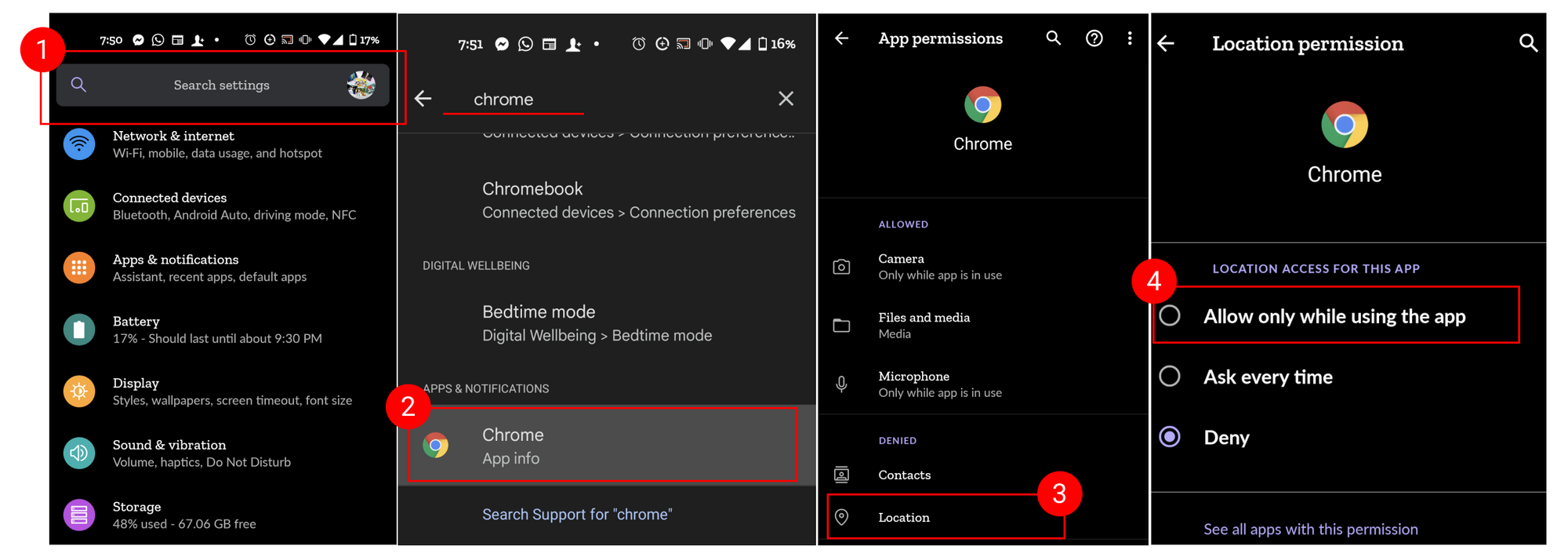
On Android:
Guide the user to their Settings app.
Ask them to search for "Chrome".
On the Chrome page, click the location button.
Change the permission setting to "Allow only while using the app".
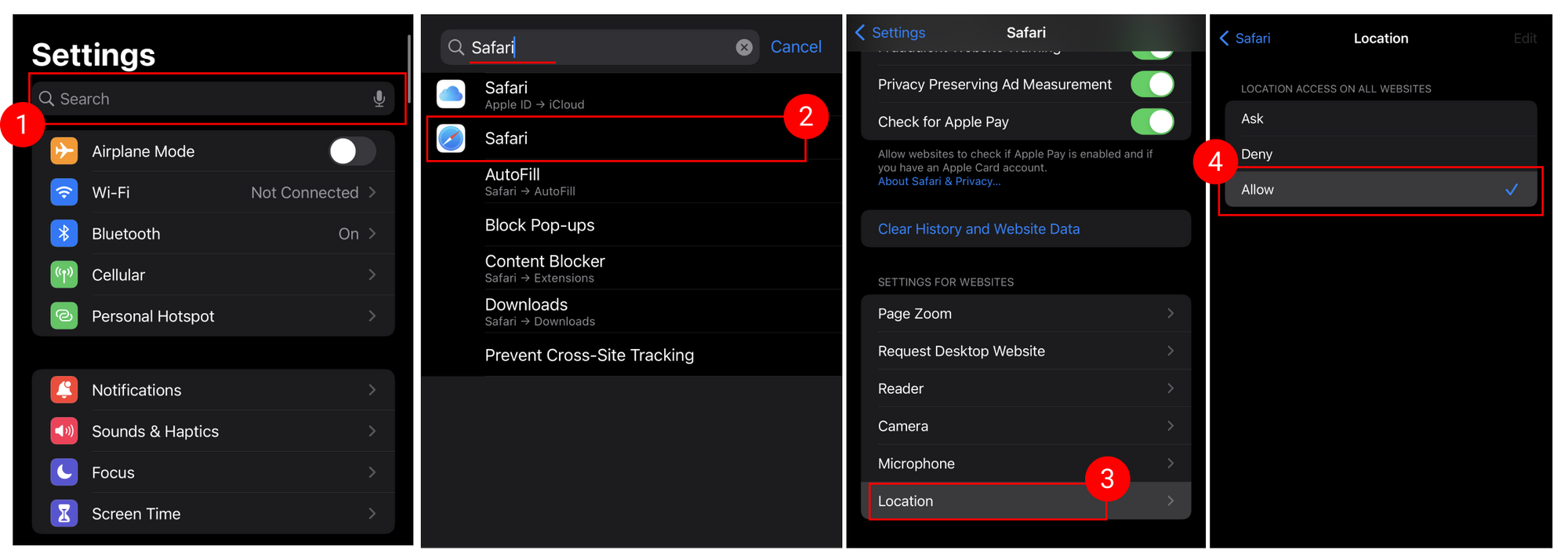
On iOS:
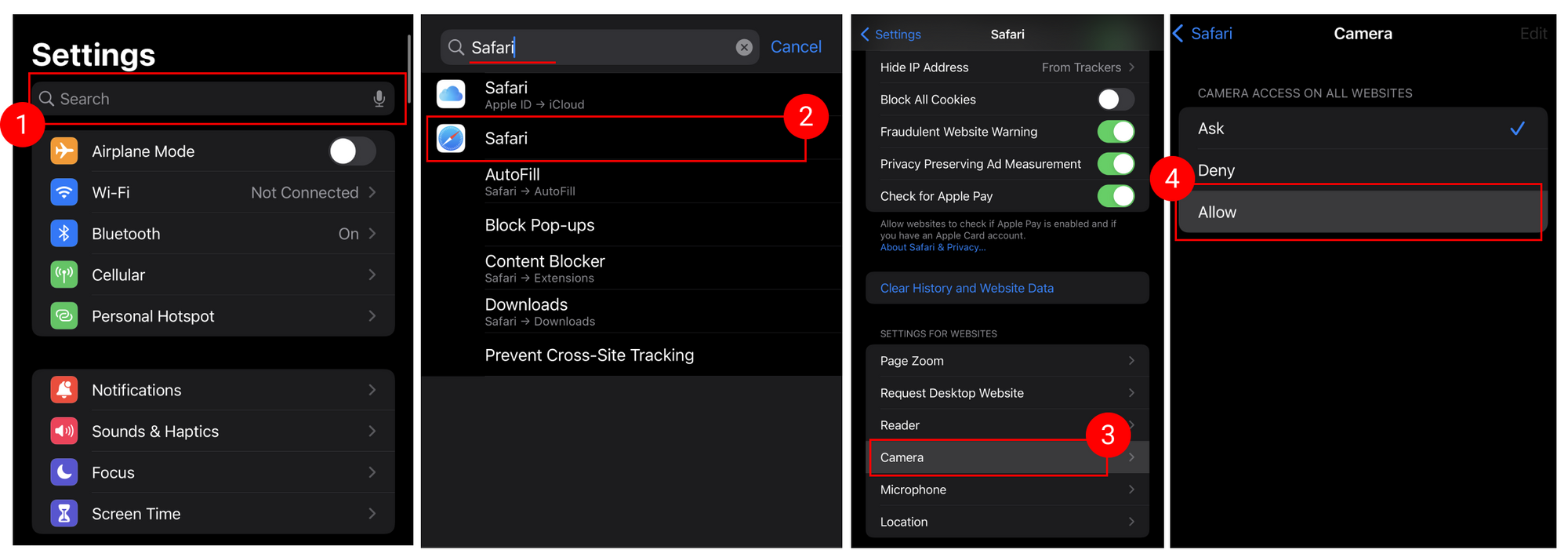
Guide the user to their Settings app.
Have them swipe up and search for "Safari".
Scroll down on the Safari page, and click "Location".
Set location permission to "Allow".
Camera Permissions Denied
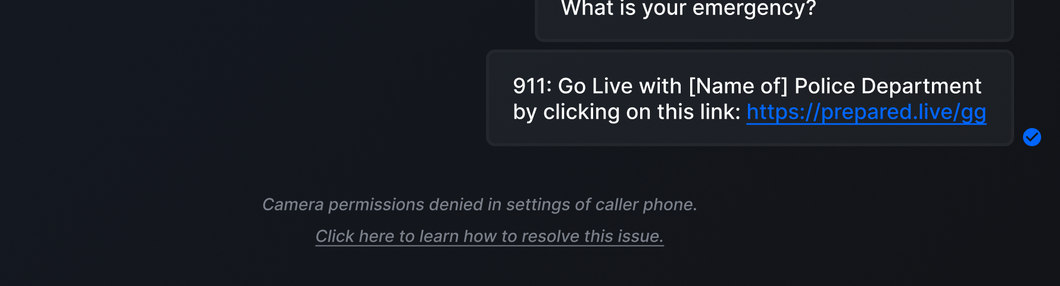
Problem: The caller’s device is blocking camera permissions, preventing live video streaming.
How to Resolve Camera Permissions Denied (Android and iOS)
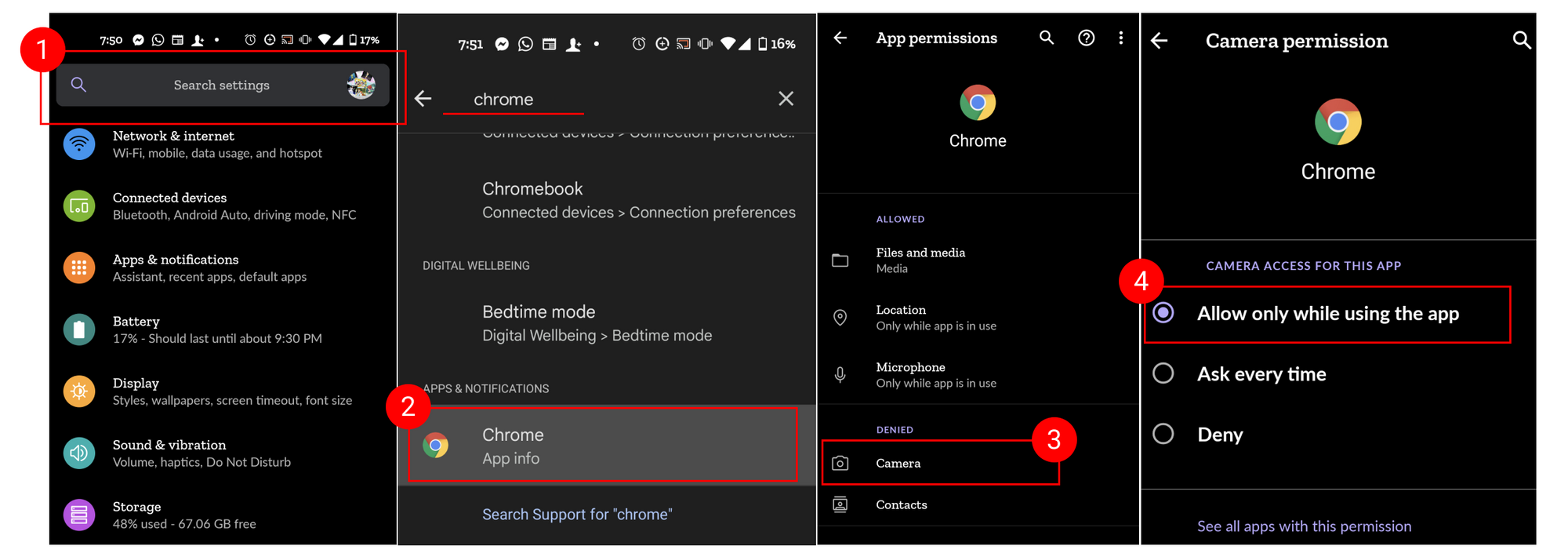
On Android:
Guide the user to their Settings app.
Ask them to search for "Chrome".
On the Chrome page, click the camera button.
Change the permission setting to "Allow only while using the app".
On iOS:
Guide the user to their Settings app.
Have them swipe up and search for "Safari".
Scroll down on the Safari page, and click "Camera".
Set camera permission to "Allow".
Camera Permissions Denied by User
Problem: The caller has manually denied camera access. This prevents them from going live on Prepared Live.
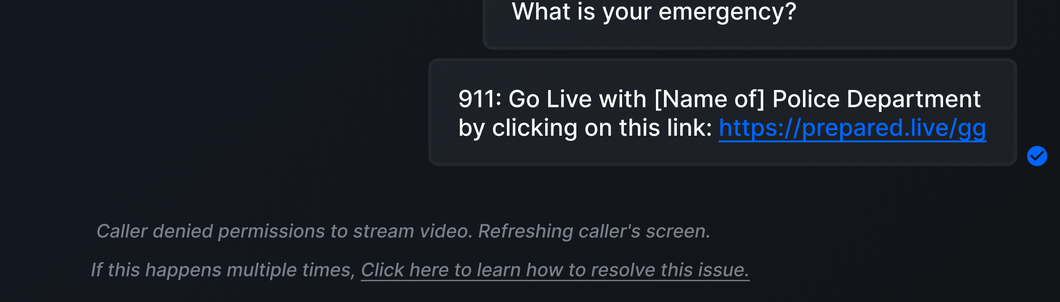
How to Resolve Camera Permissions Denied by User
On Android:
Ask the user to refresh the page and try going live again.
On iOS:
Instruct the user to refresh the page and try going live again.
What’s Next?
After resolving the caller's permission errors, you should:
Test the live stream to ensure video and location sharing are working.
Monitor incident resolution to confirm that all data is correctly relayed to first responders.
Provide support to the caller if issues persist.
Support & Additional Resources
Contact Prepared Support: Support@prepared911.com