
Training Simulator
Overview
What is the Training Simulator? An AI-powered tool within Automated QA that lets call takers practice handling emergency incidents through simulated calls — complete with voice interaction, realistic locations, and automatic scoring.
Who can use it? All AQA users. Supervisors can assign trainings, view all completed trainings, and monitor team performance. Call takers can only view and complete their own assigned trainings.
Where do I find it? Navigate to QA in the top nav bar. The Trainings section appears in the left sidebar with sub-sections for Assigned to Me, Completed, and (for supervisors) configuration via Training Simulations under Configure.
Training Types
Default Incident Types
What are default incident types? Pre-built training scenarios automatically generated when a center goes live with Automated QA. They cover all configured protocols with scenario prompts (descriptions) already written and scoring to match Automated QA scoring for the 1-1 incident type.
Do we need to set these up? No. They are created automatically. Supervisors only need to assign them to staff.
Real Call-Based Incident Types
What are real call-based trainings? Custom scenarios built from actual calls at your center. Supervisors can flag any call with a transcript to become a training scenario — ideal for highlighting exceptional calls or common challenges.
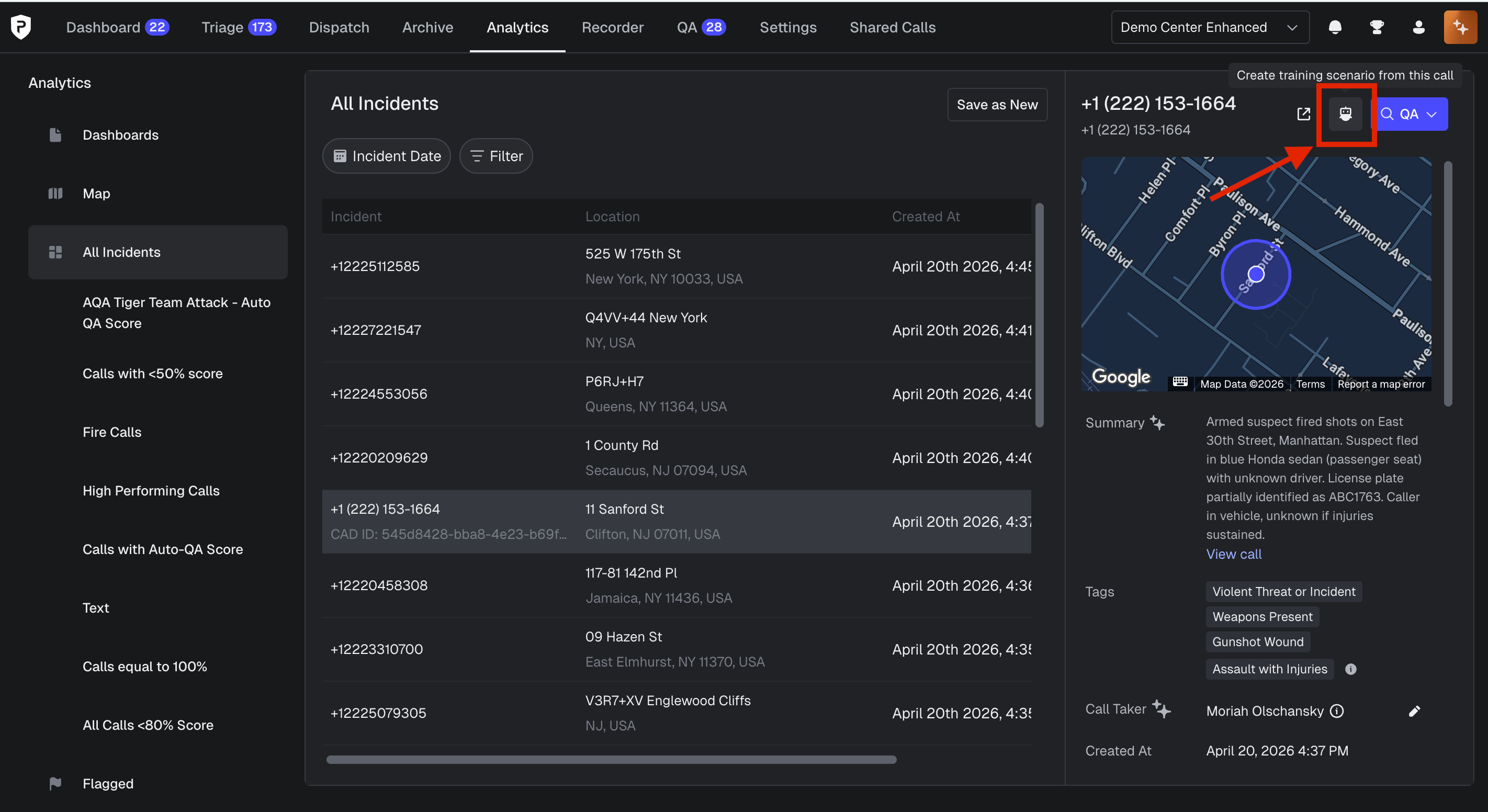
How do I create one from a real call? Go to Analytics > All Incidents, open a call with a transcript, and click the robot icon ("Create Training Scenario from Call"). A scenario description is auto-generated; you can edit it before saving.
Can I edit a scenario after creating it? Yes. Open the scenario from Settings > Training Simulations > Real Call Based tab and click Edit to update the description at any time.
Assigning Trainings
How do I assign a training? Open Settings > Training Simulations (or QA > Configure > Training Simulations), click into any incident type, and use the Assign button to select one or more staff members.
Can I assign to myself? Yes. Type your name in the assignee search and save. The training will appear in your Assigned to Me list.
How will staff know they have a training? A notification icon appears in the QA navigation until they complete the training for the first time.
Can I track who has completed a training? Yes. Each incident type panel shows each assignee's last completion date, total training count, and latest score.
Completing a Training
How do I start a training? Go to QA > Assigned to Me, find the incident type, and click Start. A loading indicator will appear, then a dial tone plays — answer it to begin the simulated call.
What happens during the simulation? The AI plays the role of the caller. A location is automatically plotted on the map. You converse as you would on a real call; the simulator may include background audio. A description is generated in real time.
How does geolocation work? The system automatically selects a real, randomized address that fits the incident type each time you run a training. Supervisors can configure which location categories are used (e.g., residential, open road).
What if no map appears during a training?
In rare cases (~3% of trainings), a generated location can't be matched to a map coordinate. When this happens, no map will populate and the training will function like a real call without ALI — the bot will still provide a location verbally, but the map view won't display and the GPS link option will not be available. This is expected behavior and not a cause for concern in isolated cases. However, if your center is seeing this frequently, please submit a bug ticket to support.
What happens when I end the call? A score is generated and displayed immediately. The completed training is logged with the transcript, score, date, and duration.
Can I run the same training multiple times? Yes. Each run generates a new random location and scenario variation. All attempts are tracked separately.
Reviewing Completed Trainings
Supervisor View
How do I see all trainings at my center? Go to QA > Completed > All Trainings tab. Filter by Call Taker or Incident Type to narrow results.
What details are available per training? Each record shows incident type, description, call taker name, score, date, time, duration, and the full transcript.
Call Taker View
What can call takers see? Only their own completed trainings — the All Trainings tab is not available to call takers. They can review their own transcripts and scores.
Scoring & Protocols
How is scoring determined? Scores are based on the protocols defined in your center's protocols configuration library, matched to the incident type assigned to the training.
Why did a training show N/A for score? N/A appears when the call was ended before any meaningful interaction occurred (e.g., the training was started but not engaged with).
Where can I view the protocols used for grading? From the incident type panel in Settings > Training Simulations, click View Protocols to see the relevant protocol library entries.