
Text to 911
Outcome Statement
After reading this section, you will understand how to configure and use Text to 911 in Prepared, including how to transfer texts to the correct PSAP, manage incidents, and establish connections between PSAPs.
Overview
Text to 911 in Prepared allows users to receive and manage texts sent to 911 within their jurisdiction. This feature helps you visualize incoming texts from 911 callers, providing an additional communication method during emergencies. You can transfer these incidents to other PSAPs and establish connections between Prepared accounts for seamless communication.
Why is this valuable?
High-Volume Texts: Texts to 911 provide an additional channel of communication, particularly useful when phone calls are not possible.
Text Routing: Text to 911 incidents can be routed correctly, ensuring that incidents are handled by the appropriate PSAP.
Efficient Communication: Prepared allows you to visualize texts and easily transfer them between PSAPs to ensure effective and efficient emergency response.
What’s included?
Real-Time Visualization: Texts to 911 are visualized in Prepared as soon as they are received.
Text Transfer: PSAPs can transfer Text to 911 incidents to the correct PSAP using Prepared Live.
Incident Summaries: Summarizes key information like nature, location, unit, and status for each incident.
Inter-PSAP Communication: Seamless communication with other Prepared PSAPs for transferring Text to 911 incidents.
🚨 Tab Blinking for Missed Notifications: The Prepared tab title will now blink to notify for new texts-to-911, caller texts, or agency chats if Prepared is a minimized tab. Available to all customers.
What happens when a caller’s T911 gets incorrectly routed to a PSAP? Can they transfer the text to the right PSAP?
Yes! If a T911 call is incorrectly routed to your PSAP, you can transfer it to the correct PSAP, provided that both PSAPs are connected through Prepared Live. Once connected, you can easily transfer incidents to the correct PSAP.
Prepared <> Prepared Transfers
Establishing PSAP to PSAP Connection
How supervisors can request a connection
Watch the demo here: Request Connection VideoHow Customer Support can respond to connection requests or set up their own connections
Watch the demo here: Set Up Connections Video
How users can transfer incidents between Prepared accounts
Demo setup
Watch the demo here: Demo VideoTransfers that require the other agency to accept the incoming message
In this workflow, the receiving PSAP does not need to accept the message for it to be transferred.
Transfers that don’t require the other agency to accept the incoming message
Watch the demo: Blind Transfer Video
How Users can transfer incident
Watch the video: How users can transfer incidents
Prepared <> Texty Transfers
Prepared also supports real-time conferencing between Prepared and Texty accounts for a transferred Text to 911.
Step 1: Add Indigital credentials to connect Texty accounts in the region
Add the required Indigital credentials in the Integrations tab within the Superadmin panel:
Agency Identifier
Secret
Username
Password
These credentials are provided by Indigital when setting up the account.
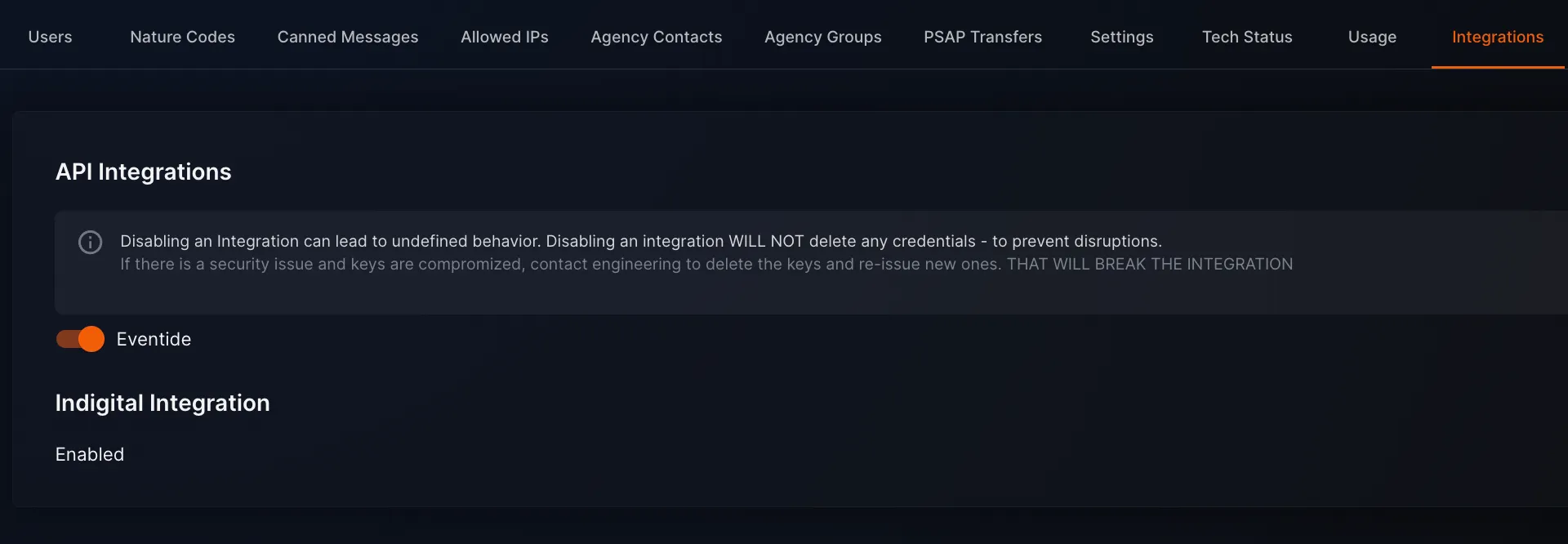
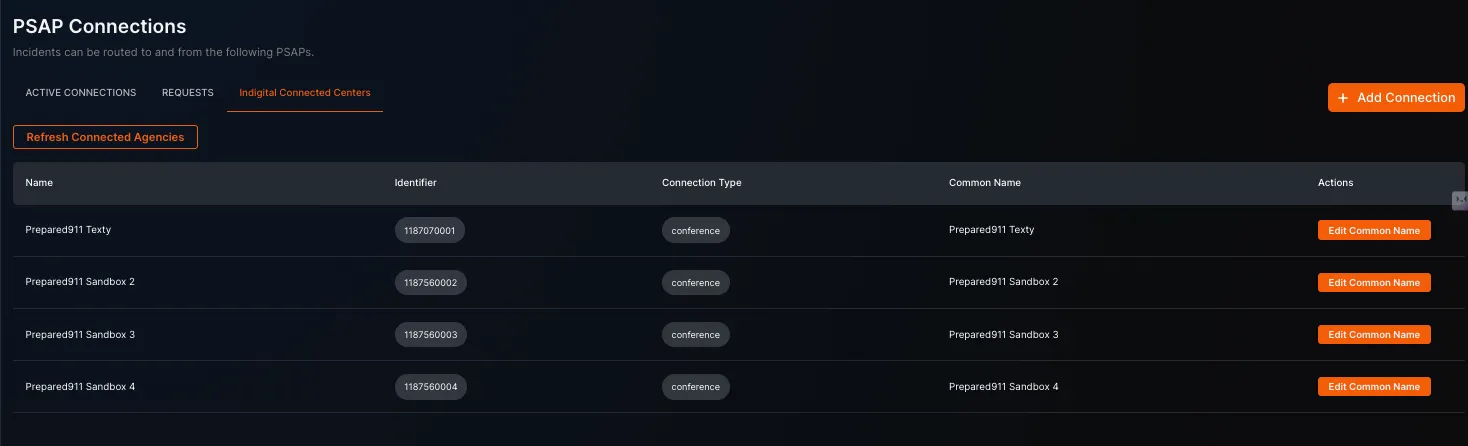
Step 2: Ensure nearby Texty connections are visible
In the PSAP Transfers tab, click Indigital Connected Centers to view nearby Indigital Texty agencies.
If the agencies aren’t visible, click Refresh Connected Agencies.
Step 3: Ensure the right feature flags are turned on
Ensure the following feature flags are enabled:
Enabled feature flags for Texty integration.
How users can conference T911s from Prepared to Texty
Watch the demo: Prepared to Texty Conference Video
How users can conference T911s from Texty to Prepared
Watch the demo: Texty to Prepared Conference Video
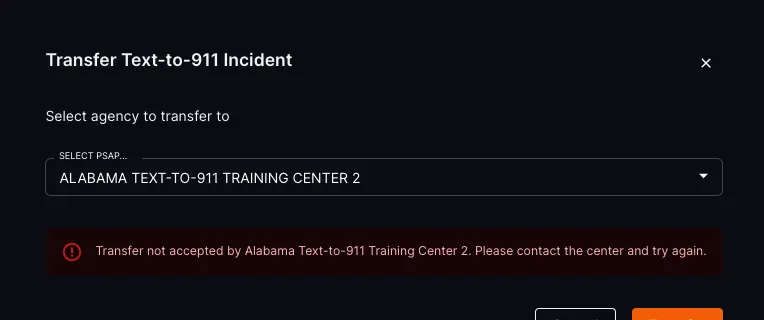
What if they don’t accept the transfer?
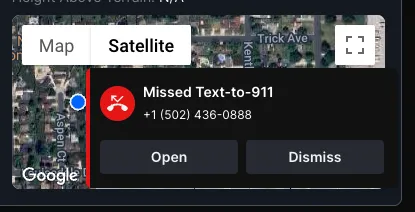
If the transfer is rejected or goes unanswered for a period of time, the initiating PSAP will be notified that the transfer wasn’t accepted, and the receiving PSAP will be informed they missed a T911.
Who gets access to Text to 911 in Prepared?
This feature is available to paid users. It is not bundled with the Enhanced or OnScene tiers but is sold separately.
FAQ
Question | Answer |
|---|---|
What is Text to 911 in Prepared? | Text to 911 allows Prepared Live users to ingest and visualize texts sent to 911 from their jurisdiction. |
Can I transfer a T911 incident to the correct PSAP if it gets routed incorrectly? | Yes, you can transfer a T911 incident to the correct PSAP, provided both PSAPs are connected via Prepared Live. |
How do I transfer T911 incidents to another PSAP? | Ensure both PSAPs are connected, and the feature flag |
How do I set up a Prepared <> Prepared connection for transferring T911s? | Supervisors can request a connection through Settings > PSAP Connections, and the other PSAP must accept the request. |
What happens if the receiving PSAP does not accept the transfer? | If the transfer is rejected or unanswered, the initiating PSAP will be notified, and the receiving PSAP will be informed that they missed the T911. |
How do I connect Prepared with Texty for T911 transfers? | You need to add Indigital credentials to the Superadmin panel and ensure the correct feature flags are turned on for Texty integration. |
Who gets access to Text to 911 in Prepared? | Text to 911 is available to paid users and is sold separately from the Enhanced and OnScene tiers. |
Support & Additional Resources
Contact Prepared Support: Support@prepared911.com