
AD (Assistive Dispatch)
Product: Prepared Assistive Dispatch
Audience: Call Takers, Dispatchers, Supervisors, and Administrators
Last Updated: 03/05/2025
Outcome Statement
After reading this section, you will understand how to use the radio transcription tool to transcribe real-time radio traffic, flag key phrases, and manage incident summaries, helping you better track and respond to high-volume radio communications.
Overview
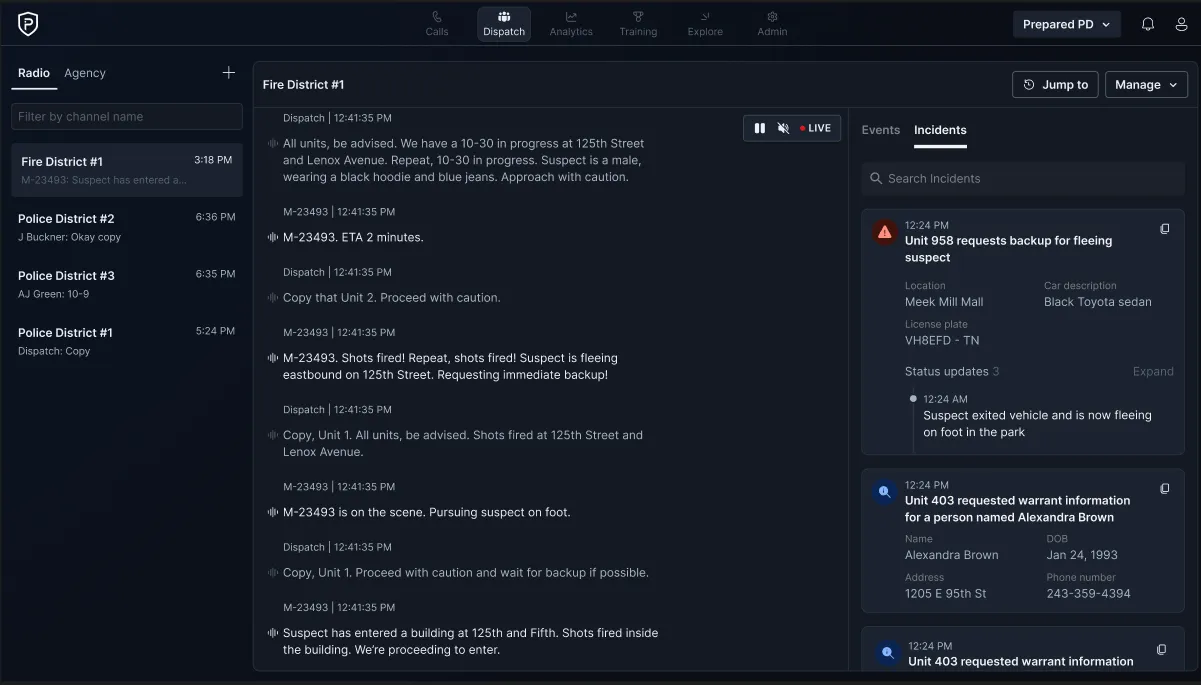
The radio transcription tool addresses the challenges of handling high volumes of radio traffic and poor audio quality. This feature provides real-time transcription of radio calls, including unit IDs, timestamps, and talk groups. It allows you to instantly access playback, pin talk groups, and view summaries that highlight essential information, such as nature, location, unit, and status.
Why is this valuable?
High Volume & Poor Audio: Radio traffic can be overwhelming due to high volumes and unclear audio. This tool helps you keep up with critical information and ensures you’re focused on the right tasks.
Dispatcher Challenges: Dispatchers often struggle to keep track of all the radio calls they need to monitor. This tool helps streamline the process, allowing you to focus on what's important.
Redundancy: Existing playback tools are often redundant when real-time transcription and instant playback are available, making the process more efficient.
What’s included?
Real-Time Transcription: Transcribes radio traffic in real time, including unit ID, timestamp, and talk groups.
Instant Playback: Enables immediate playback for better context and quicker response.
Talk Group Pinning: Allows you to pin specific talk groups for easy access.
Incident Summaries: Summarizes key information like nature, location, unit, and status.
How do I edit talk group names or unit aliases?
How do I edit talk group names or unit aliases?
You can update unit aliases either manually or in bulk, depending on how many changes you need to make.
Option 1: Edit Individually (Manual Method)
Use this method for small updates.
Go to Settings
Navigate to Settings > Radio Settings
Select Talk Groups or Unit Aliases
Edit the name or alias as needed
Click Save to apply changes
Option 2: Upload Unit Aliases in Bulk (Recommended for Large Updates)
Use this method when updating many unit IDs at once.
Download Current Unit IDs or Template
Go to Settings > Radio Settings > Unit IDs
Select:
Download Current Unit IDs (to modify existing data), or
Download Template (to start fresh)
Update the Spreadsheet
Edit the following fields:
Unit Name: Existing identifier (do not change unless instructed)
Alias: Display name in Dispatch (must be unique)
Console (Yes/No): Determines where the unit appears in Dispatch
Upload the File
Return to Settings > Radio Settings > Unit IDs
Click Upload Unit IDs
Select your file and upload
Confirm the upload success message
Verify Changes
Go back to Dispatch
Refresh the page
Confirm updated aliases appear correctly
Best Practice
Use bulk upload when:
You have an existing unit-to-alias mapping
You need to update multiple units at once
Use manual editing when:
You are making only a few changes
How does keyphrase search work?
Initial Implementation
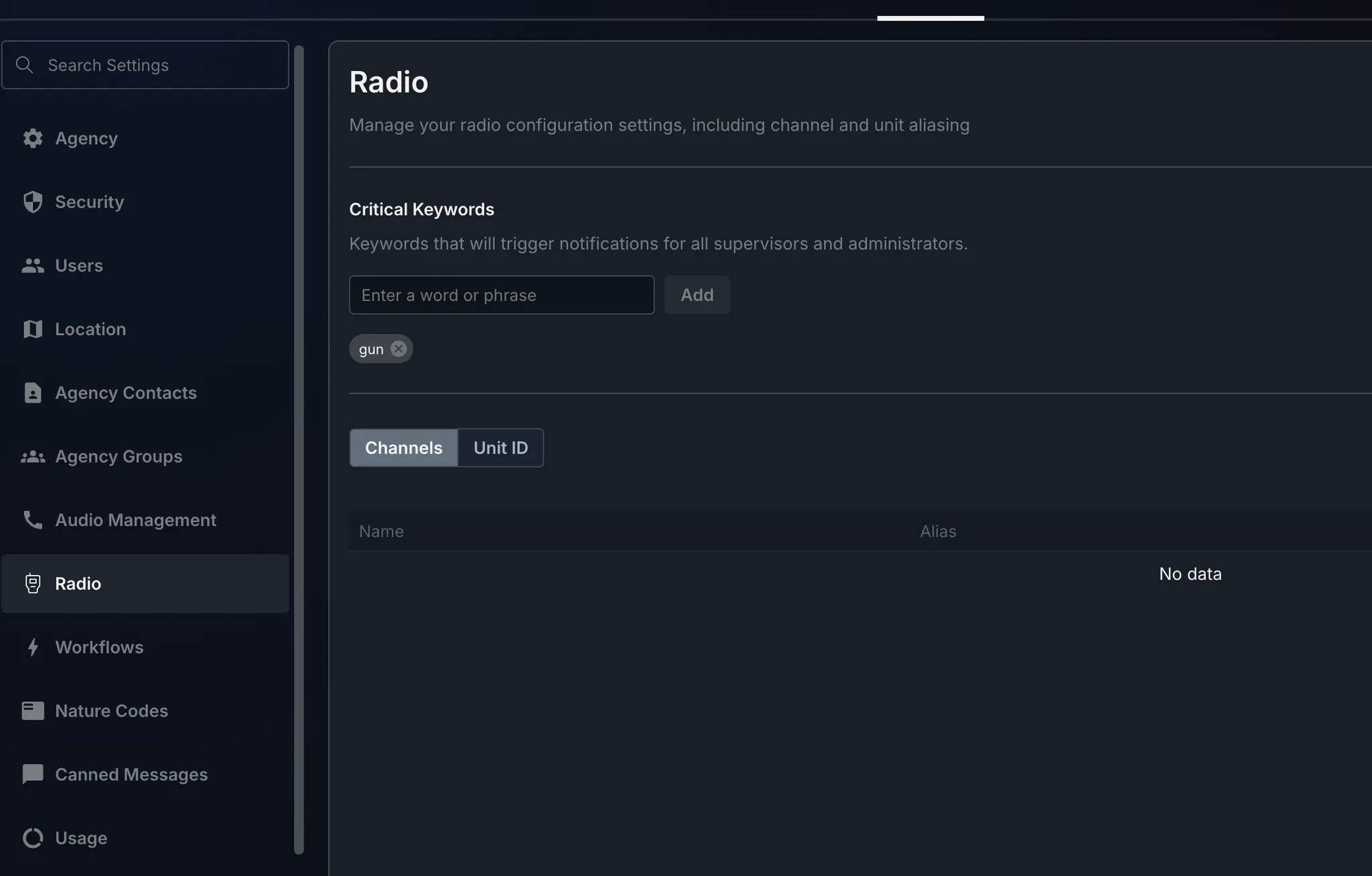
Configure Keywords
Supervisors or admins configure the keywords in Settings > Keyword Configuration.Keyword Notifications
When a keyword is triggered, a notification will pop up on the bottom right-hand corner for all supervisors and admins.Search Across All Channels
Keywords are searched across all channels, and each channel has its own keyword history.Click to Access Transcript
Clicking on a keyword notification takes you directly to that spot in the radio traffic transcript.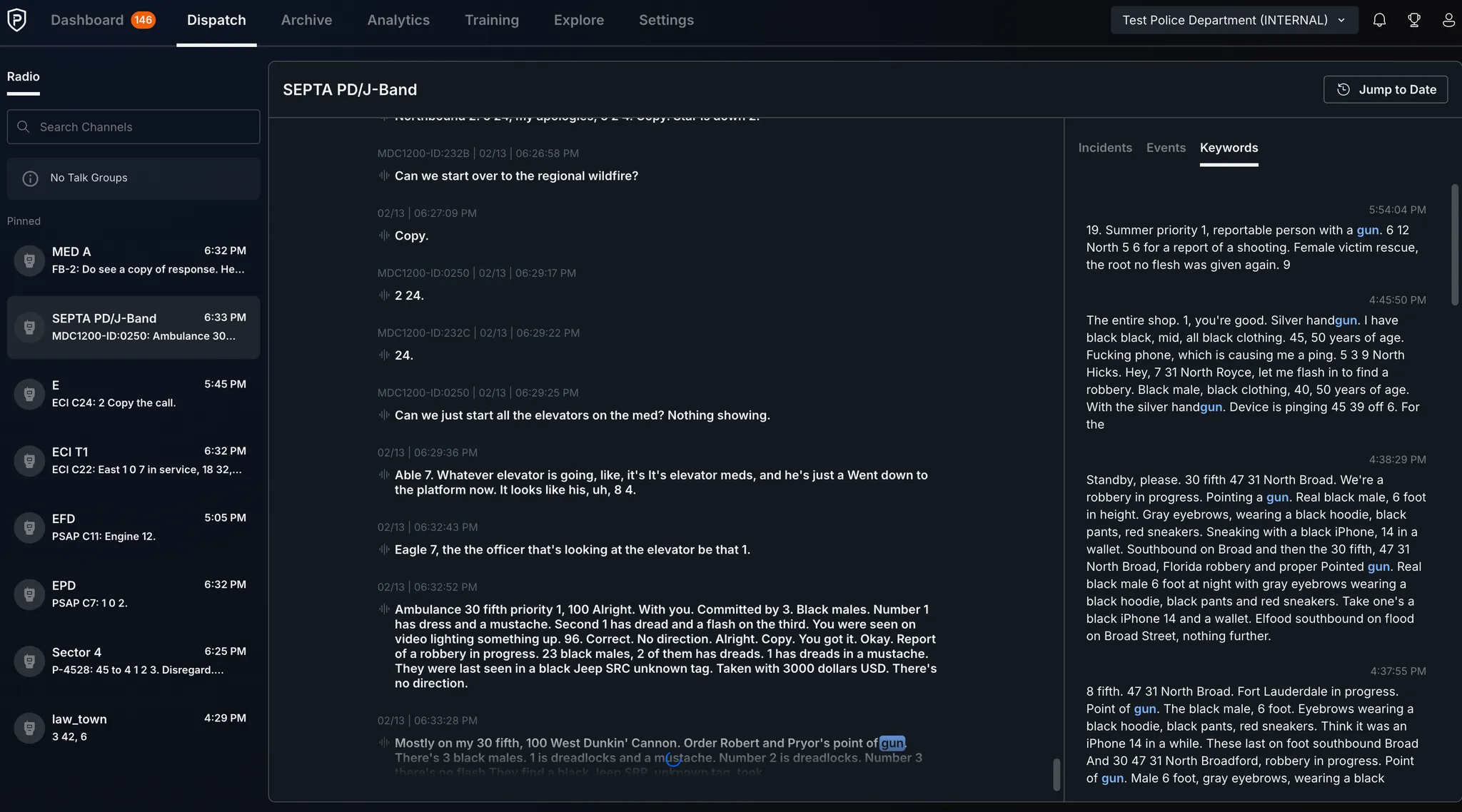
How accurate is the transcription?
The transcription tool is designed to be highly accurate, with a focus on real-time accuracy. While the initial implementation is based on simple algorithms, continuous improvements are made to ensure higher accuracy, especially for key phrases.
What customers are eligible?
Customers who subscribe to the Prepared Audio Tier will be eligible to use this feature.
How is it implemented?
Configuration: Supervisors and administrators can configure the settings for transcription, keyword flags, and talk groups within the Prepared interface.
Integration: The transcription tool integrates seamlessly with the radio communication system, allowing for real-time processing of radio traffic.
FAQ
Question | Answer |
|---|---|
How do I use keyword search? | Set up keywords in Settings, and the system will notify supervisors and admins when a keyword is triggered. |
Can I access past radio traffic? | Yes, the tool allows for real-time and instant playback of radio traffic. |
Can I pin specific talk groups? | Yes, talk groups can be pinned for easy access during high-volume periods. |
How do I manage unit aliases? | You can edit unit aliases and talk group names in the Settings section. |
Is this feature included in the basic tier? | No, this feature is available only with the Prepared Premium Audio Tier. |
Support & Additional Resources
Contact Prepared Support: Support@prepared911.com