
Map Dashboard
Product: Prepared
Audience: Call Takers, Dispatchers, Supervisors, and Administrators
Last Updated: 03/04/2025
Outcome Statement
After reading this section, you will understand how to use the new Map View, Auto-Population for EED/ELS incidents, and how these features improve your ability to track and respond to incidents.
Overview
The Map View is a new dashboard feature that provides a visual representation of incidents within your PSAP’s jurisdiction. It centralizes all incidents in one view, allowing you to quickly identify location-based trends and improve response coordination. Auto-Population ensures that EED/ELS data appears in Prepared as soon as it is received, even before an audio call starts, helping you get a "head start" on location data.
General Questions
What is the Map View?
The Map View is a dashboard feature that shows you incidents within your jurisdiction. It consolidates all incidents into one map, allowing you to quickly visualize and act on location-based trends.
What is Auto-Population for EED/ELS incidents?
Auto-Population ensures that EED/ELS data appears in Prepared as soon as it’s received—even before an audio call starts. This feature gives you the same "head start" you are used to with other platforms for location data, ensuring that you can start your response faster.
Using the Map View
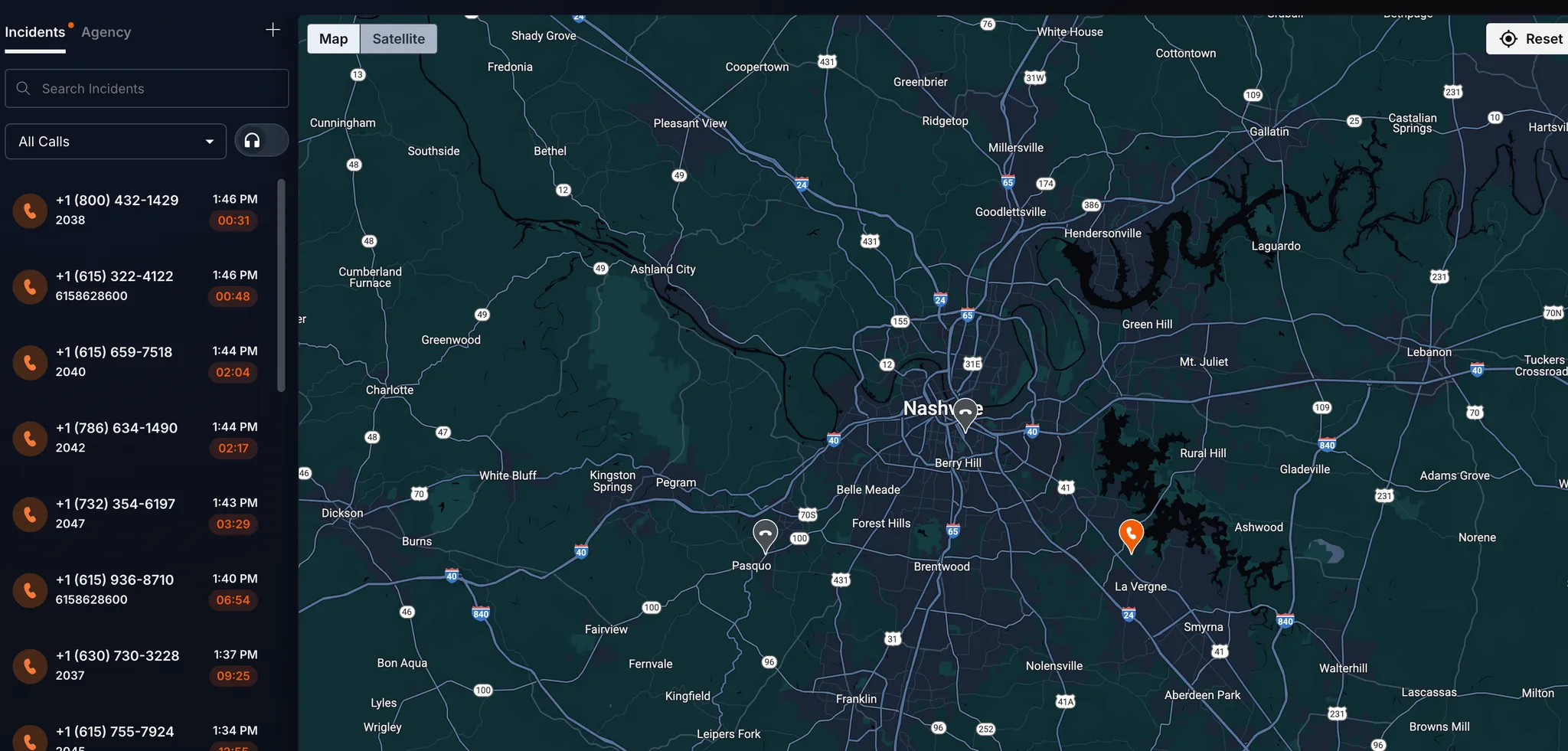
How does the Map View determine what to display?
Question | Answer |
|---|---|
What does the Map View display? | It automatically centers on your jurisdiction, shows unresolved incidents, and includes EED, ELS, ANI, ALI, and Prepared Link locations for available calls. |
How does the Map differentiate between incident types? | Incidents are shown with specific icons: Call icon for EED/ELS, TT911 icon for Text-to-911, and Message/Media icons for user-provided media. Incidents with locations are shown as pins. |
Can I filter incidents on the Map? | Yes, you can apply a call taker filter to display only relevant incidents. |
How does navigation work between the list and the Map? | Clicking a pin on the Map highlights the corresponding incident in the list. You can also hover over a list item to preview details on the Map (future enhancement). |
What details are included in the incident preview? | Audio calls show audio playback, summary, phone number, duration, location & type, and CTA buttons. Non-audio calls show phone number, location & type, and CTA buttons. |
What happened to the leaderboard?
You can still access the leaderboard by clicking the trophy icon in the top right corner.
What happened to the incident creation button?
Use the “+” icon to create new incidents.
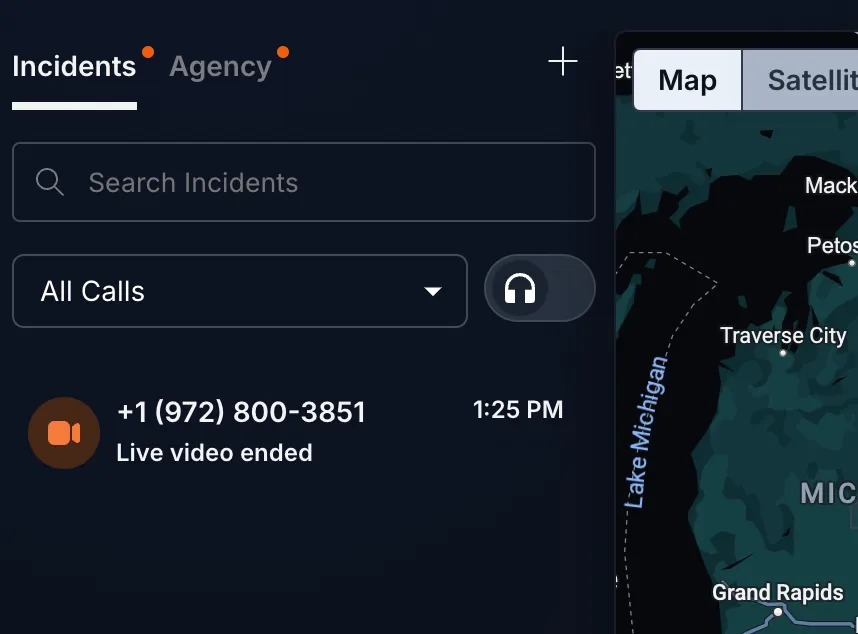
Auto-Population & Incident Handling
How does Auto-Population work?
Question | Answer |
|---|---|
What happens when EED/ELS incidents are received? | They appear in the incident list even before an audio call starts, not assigned to a seat and no notification sound is triggered, except for TT911 incidents. |
What happens if an EED/ELS incident is not matched to an audio call? | The incident will auto-resolve after a specified time (default is 10 minutes, configurable), and you can track the response status for unmatched incidents. |
Can I turn Auto-Population on or off? | Yes, Auto-Population is controlled via a toggle in Location Settings. It’s enabled by default for audio customers, and off by default for non-audio customers. |
Technical & Performance Details
Question | Answer |
|---|---|
Do I need a geofence uploaded or EED/ELS enabled to see the map? | No, you can still see call locations on the map even if a geofence is not uploaded. However, uploading a geofence will display the correct data for your jurisdiction. |
How does the system handle multiple location sources? | The system plots all available locations (EED, ELS, ANI, ALI, Prepared Link) on the map and retains the best available location if EED expires after 24 hours. |
How does the Map handle focus and navigation? | The map auto-focuses on the latest active incident if focus mode is applied. Without focus mode, no auto-focus is applied. |
Support & Additional Resources
Contact Prepared Support: Support@prepared911.com