
Prepared: Location in Android, iOS, Safari
Product: Prepared
Audience: Call Takers, Dispatchers, Supervisors, and Administrators
Last Updated: 01/15/2026
Outcome
After using this guide, you will be able to:
Explain how location works during emergency calls.
Set clear expectations with callers about location accuracy.
Instruct callers on enabling and improving location sharing.
Gather accurate location verbally when technology is limited.
Overview
Location information is one of the most critical elements of an emergency call. While Prepared Assist helps surface location data when available, location is not always immediate, complete, or precise. As a call taker, you play a key role in explaining location, guiding callers through enabling it, and confirming location verbally.
This is a call taker–facing guide intended to support you during live calls.
What Callers Should Understand About Location
When speaking with callers, set clear expectations:
Location may take time to appear.
Location accuracy can vary.
Technology does not replace verbal confirmation.
You should always confirm location verbally, even when location data is visible.
Sources of Location Information
Location may come from multiple sources, including:
The caller’s mobile device location services.
Network-based location data.
Information the caller provides verbally.
Each source may differ in accuracy. Use all available information together.
When to Use This Guide
Use this guidance when:
Location is missing, delayed, or unclear.
Location data does not match what the caller reports.
The caller asks how their location is being determined.
You need to instruct the caller to improve location accuracy.
Do not instruct callers to interact with their phone if doing so would place them in danger.
Before Giving Location Instructions
Before guiding a caller:
Confirm the caller is on a smartphone.
Ask whether they are using an iPhone or Android device.
Ask the caller to stay on the line while making changes.
Decision Cue: Which Location Instructions to Use
📦 CALL TAKER DECISION BOX — LOCATION HANDLING
ALWAYS
Confirm the caller’s location verbally.
Use Enable Location Services on an iPhone (Required) or Android location steps when location is missing or unclear.
SOMETIMES
Use Allow Location in Safari on an iPhone (Only If Using a Link).
Only apply this when the caller is opening a link on their iPhone.
STOP
Stop troubleshooting phone or browser settings if location does not update quickly.
Continue the call using verbal location and follow agency procedures.
Key Reminder: Location technology supports the call. It never replaces verbal confirmation.
Explaining Location to Callers (What to Say)
Use simple explanations:
“Your phone can share its location, but sometimes it needs to be turned on or adjusted.”
“I’m also going to ask you some questions to confirm where you are.”
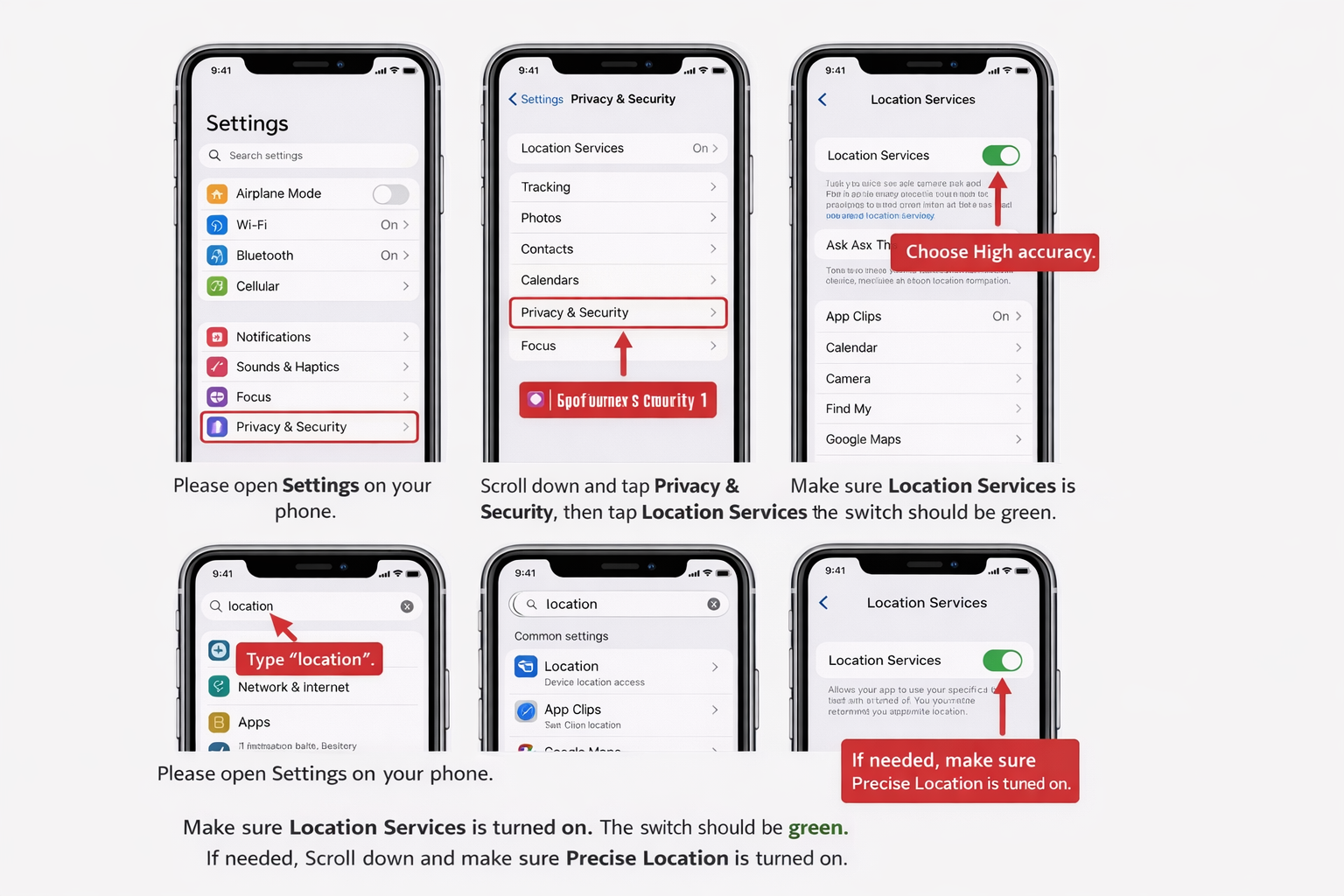
Enable Location Services on an iPhone (Required)
Say:
“Please open Settings on your phone.”
“Scroll down and tap Privacy & Security, then tap Location Services.”
“Make sure Location Services is turned on. The switch should be green.”
If needed, say:
“Scroll down and make sure Precise Location is turned on.”
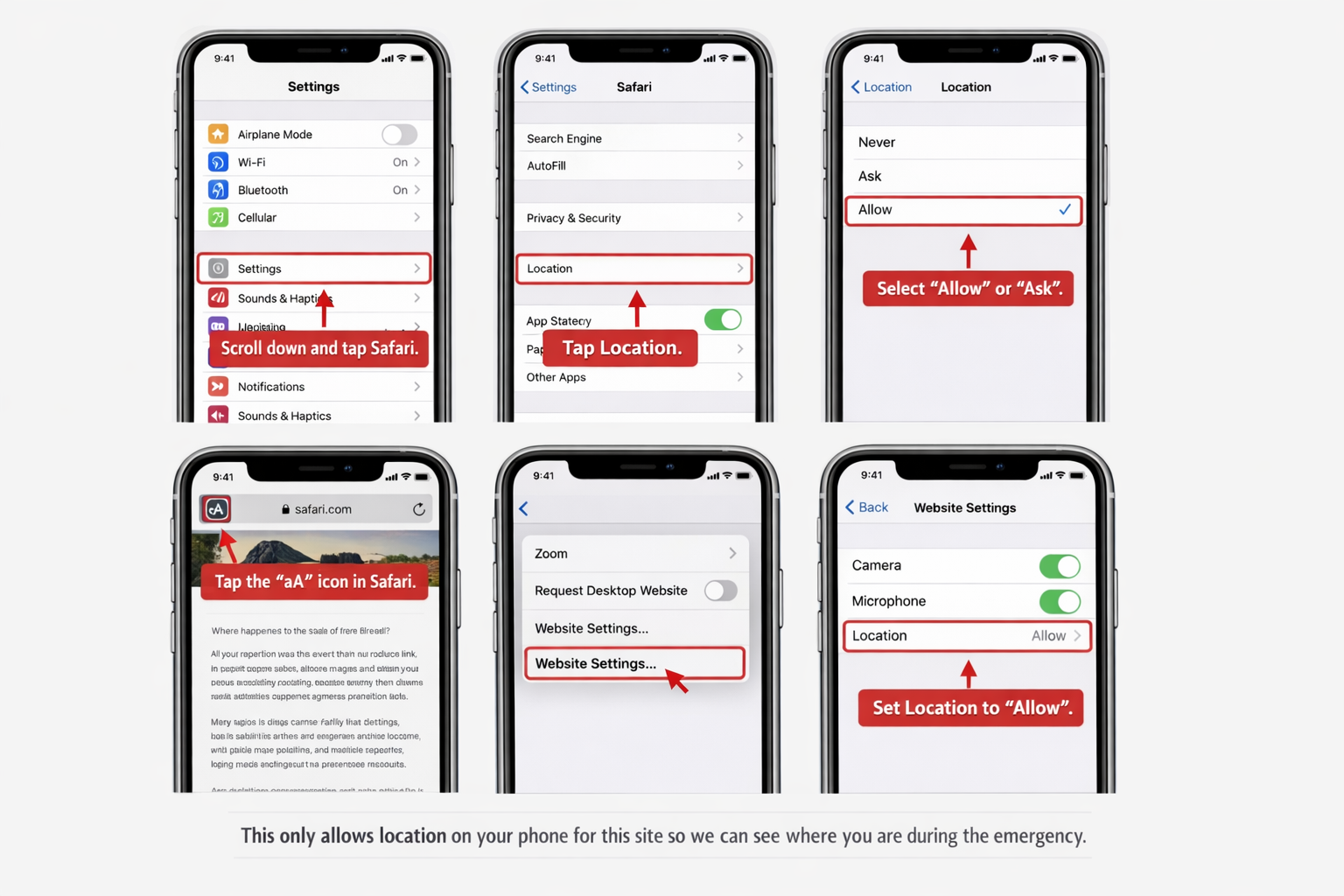
Allow Location in Safari on an iPhone.
Use these instructions only when the caller is on an iPhone and is opening a link in Safari on their cell phone.
Say:
“This is just for your phone browser.”
“Please open Settings on your phone.”
“Scroll down and tap Safari.”
“Tap Location.”
“Select Allow or Ask.”
If the caller already has Safari open on their phone, say:
“While Safari is open, tap the icon in the address bar.”
“Tap Website Settings.”
“Make sure Location is set to Allow.”
Reassure the caller:
“This only allows location on your phone for this site so we can see where you are during the emergency.”
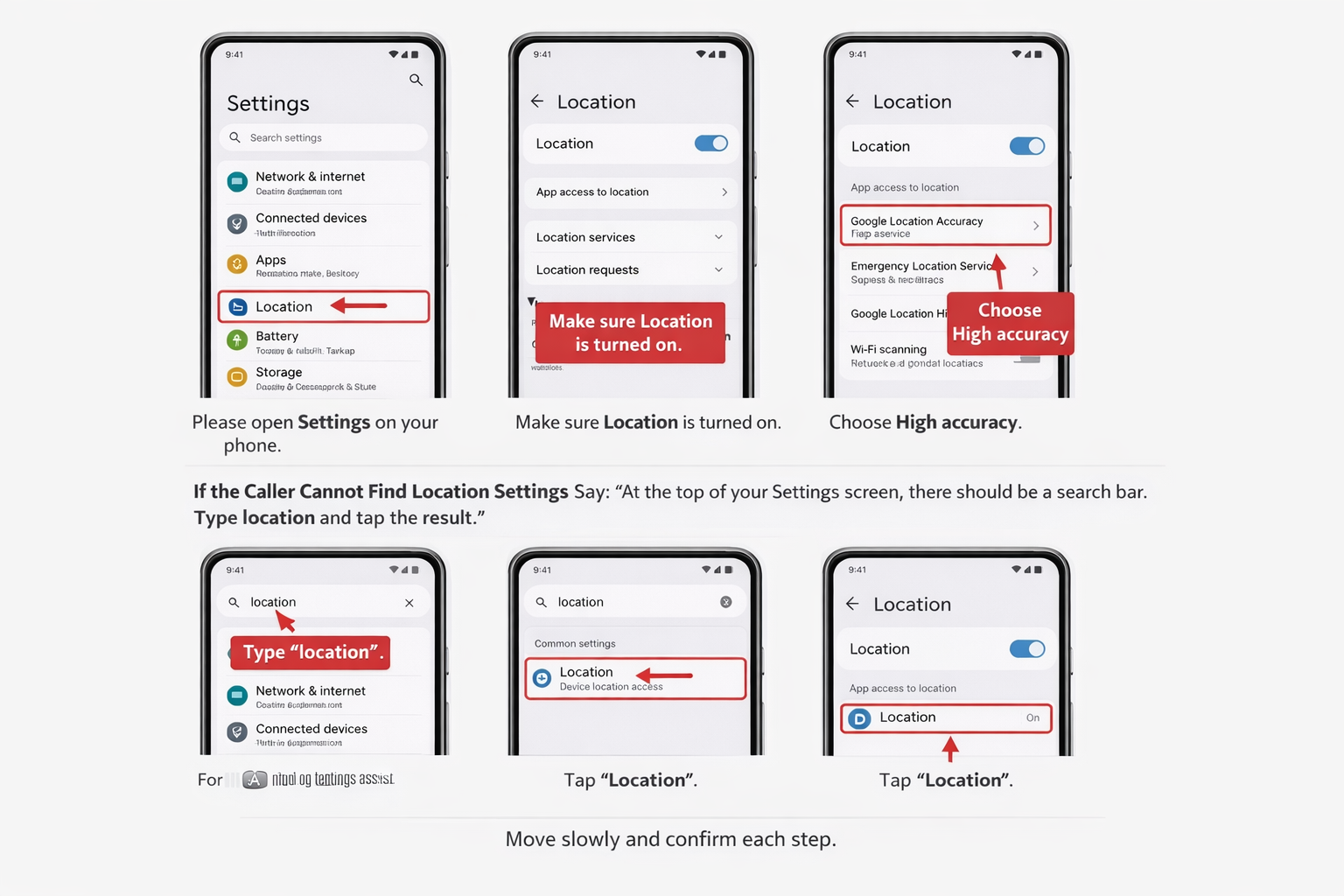
Instructing Callers to Enable Location on an Android
Say:
“Please open Settings on your phone.”
“Tap Location.”
“Make sure Location is turned on.”
If available, say:
“If you see Location Mode or Location Services, choose High accuracy.”
If the Caller Cannot Find Location Settings
Say:
“At the top of your Settings screen, there should be a search bar. Type location and tap the result.”
Move slowly and confirm each step.
Confirming Location Verbally
Always confirm:
Address or nearest address.
City or jurisdiction.
Apartment, floor, room, or landmark if applicable.
Say:
“Tell me exactly where you are right now.”
“What’s the closest address or landmark?”
When Location Data Does Not Match the Caller
If location data conflicts with what the caller reports:
Trust the caller’s verbal information first.
Ask clarifying questions.
Update details according to your agency’s procedures.
Common Location Challenges
Caller is indoors or underground.
Caller is moving.
Location services are turned off.
Device settings limit accuracy.
Explain calmly and continue gathering information.
Best Practices for Call Takers
Always confirm location verbally.
Give one instruction at a time.
Avoid technical language.
Reassure the caller you are staying on the line.
Stop troubleshooting if the caller becomes overwhelmed.
Caller-side: How the Caller Interacts
Prompt for Location Permissions
The caller will be prompted immediately for location permissions once they open the livestream link.
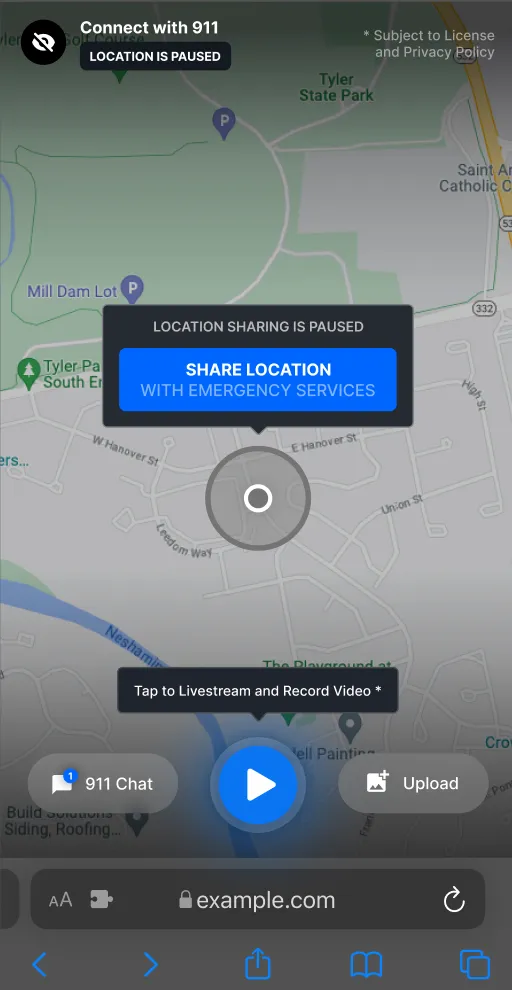
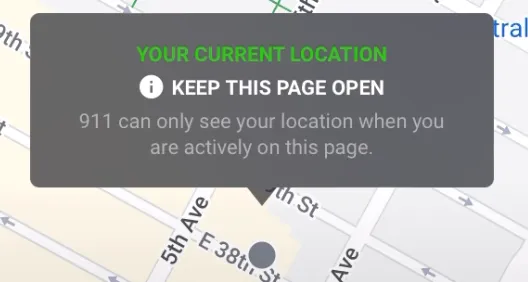
View Location Map
After granting location access, the caller’s screen will display their live location along with a reminder not to exit the page.Keep the Page Open
The caller will be reminded to stay on the page to ensure their location continues updating.
Common Caller Questions
Caller Question | What to Say |
“Why don’t you already know where I am?” | “Sometimes location takes a moment, so I need you to tell me as well.” |
“Is this exact?” | “It gives us an estimate, which is why I’m confirming with you.” |
“Will this track me later?” | “No. This only helps during the emergency.” |
If Location Still Cannot Be Confirmed
If location remains unclear:
Continue verbal location questioning.
Use landmarks, directions, or nearby features.
Follow agency documentation and escalation procedures.
Support & Additional Resources
For questions or additional guidance, contact Support@prepared911.com.