
Location from Multiple Sources
Product: Prepared ACT
Audience: Call Takers, Dispatchers, Supervisors & Administrators
Last Updated: 03/04/2025
Outcome Statement
After reading this section, you will be able to understand and use the multi-location feature to visualize and manage location data from partner tools and track live caller locations during incidents.
Overview
The multi-location feature allows you to access and visualize initial location data from partner tools directly in Prepared. This feature helps you work off the initial location data provided by the partner tools. From there, you can enable Prepared’s live GPS location feature to gather more detailed, real-time location information, even after the call ends.
Prerequisites
✅ The integration with partner tools must be enabled.
Step-by-Step Instructions
Accessing the Multi-Location Feature
From the Dashboard, open an active incident.
The initial location data from partner tools will be displayed in the incident details section.
Viewing the Initial Location
The initial location will automatically populate from partner tools once the incident is created.
The source of the location will be clearly labeled based on the partner tool.
Requesting Live Location Data
To request the live location of the caller or more updated location data, click the ‘Get Live Location’ button in the incident view.
The location request will be sent to the caller’s device.
You can track the status of the location request, including whether the link has been opened and if location access has been granted.
Handling Location Access Denial
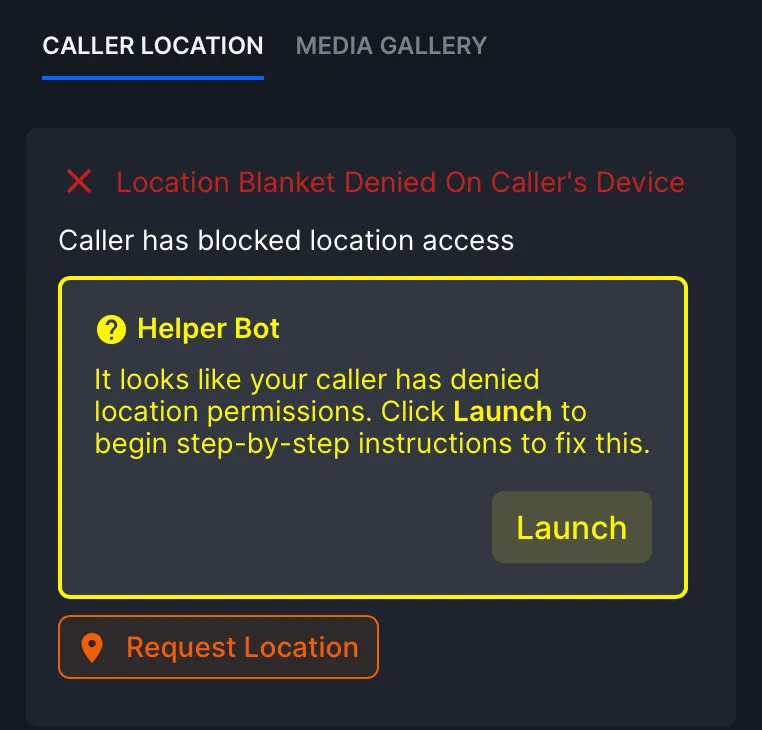
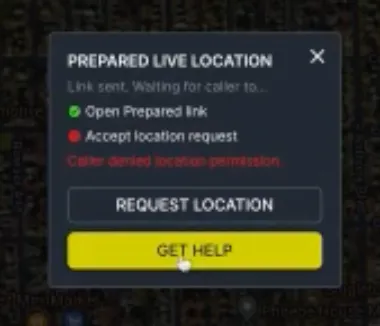
If the caller denies location access, a prompt will appear asking you to guide the caller to enable location permissions.
Click ‘Get Help’ to use the Helper Bot, which will guide the caller in enabling location access.
Viewing Live Location
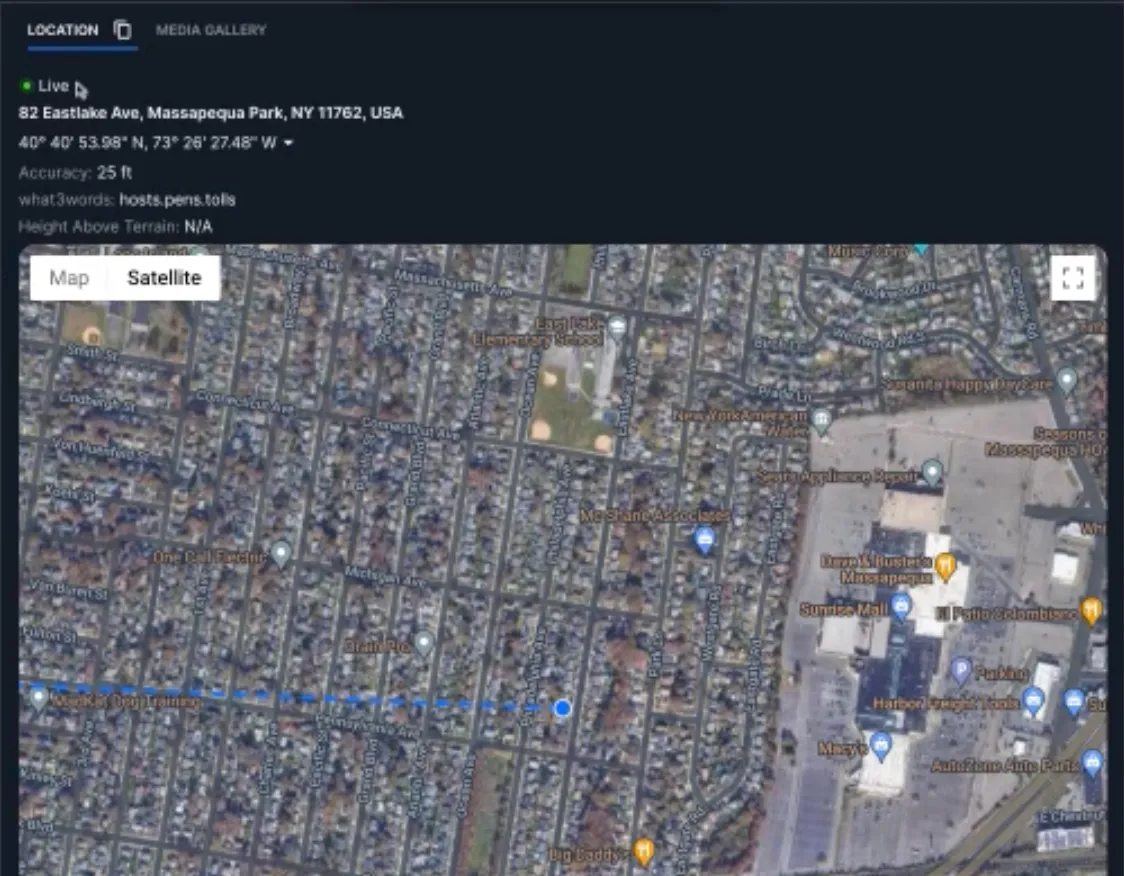
Once the caller grants location access, the location source label will change to ‘Live’, and the live location data will be displayed in the incident view.
What problem does this solve?
The multi-location feature provides you with an initial location based on data from partner tools. This allows you to immediately work off a location, regardless of whether the incident was created from any partner tools that provide their own location data. The feature also enables you to gather rich, real-time GPS location data using Prepared’s live location feature after the initial location has been captured.
Where does Prepared get the initial location?
Prepared receives location data directly from partner tools integrated with the platform. These tools provide location information at the initiation point of an incident. Once location data is received from a partner tool, Prepared visualizes this data in its UI before triggering the live location feature. This enables you to work with the initial location right away.
Why should you enable Prepared's live location when you have access to other location data?
Prepared’s live location feature supplements the data provided by partner tools, offering more accurate and real-time location information. It can be especially useful when:
Jurisdictional mapping issues: Location data does not come through accurately via partner tools due to mapping errors.
Third-party callers: A caller may be reporting on behalf of someone else (e.g., the caller’s location is different from the person they’re reporting on). Prepared allows you to send a link to the person they are reporting on and access their location.
Disconnected callers: If a caller is accidentally disconnected from the 911 call, Prepared’s live location feature allows you to continue tracking the caller even after they lose contact.
What does the Prepared application look like currently?
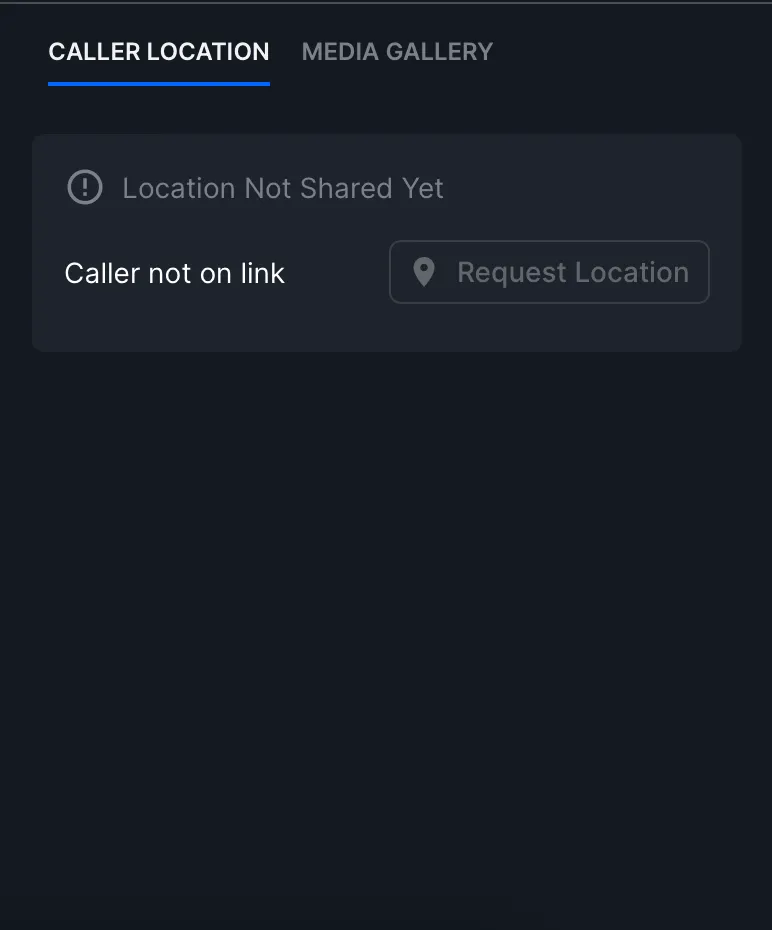
When the Prepared Live application is launched from partner tools, no location data is displayed initially.
Once the caller clicks on the link sent by Prepared, and if their device has denied location access, the following message will prompt you to guide the caller to enable location permissions.
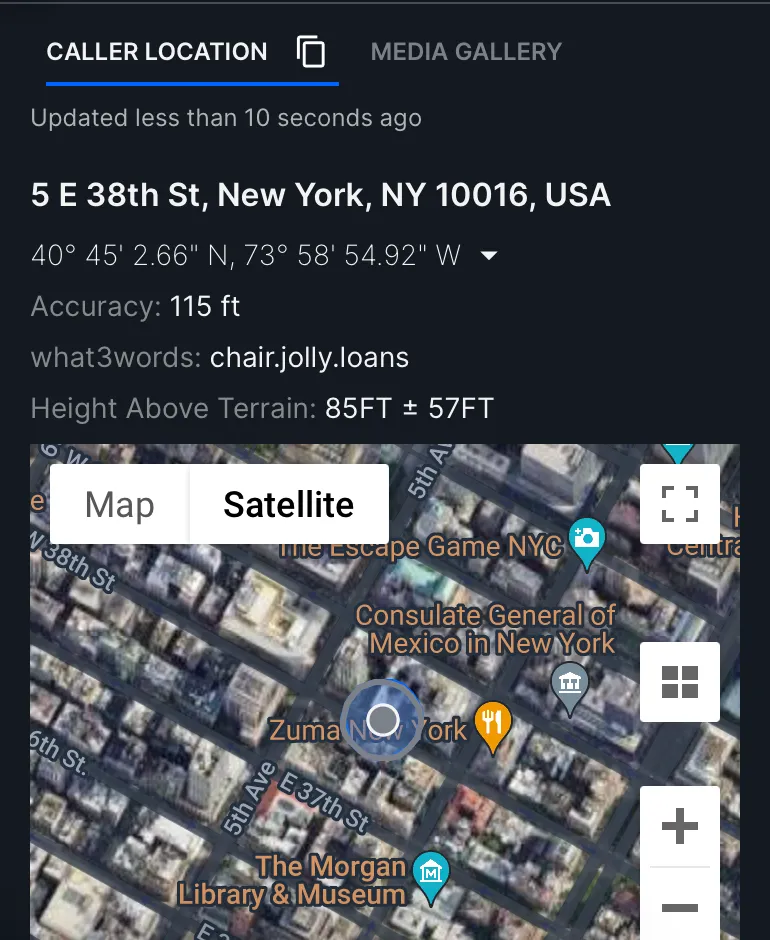
Once location access is granted, you can view the caller's location.
How does the multi-location feature work?
The initial location data from partner tools is automatically pre-filled in the Prepared interface before the caller clicks the link.
The source of the location will be labeled appropriately based on the partner tool (e.g., “Location from Partner Tool”).
You can click the ‘Get Live Location’ button to request updated location data directly from Prepared.
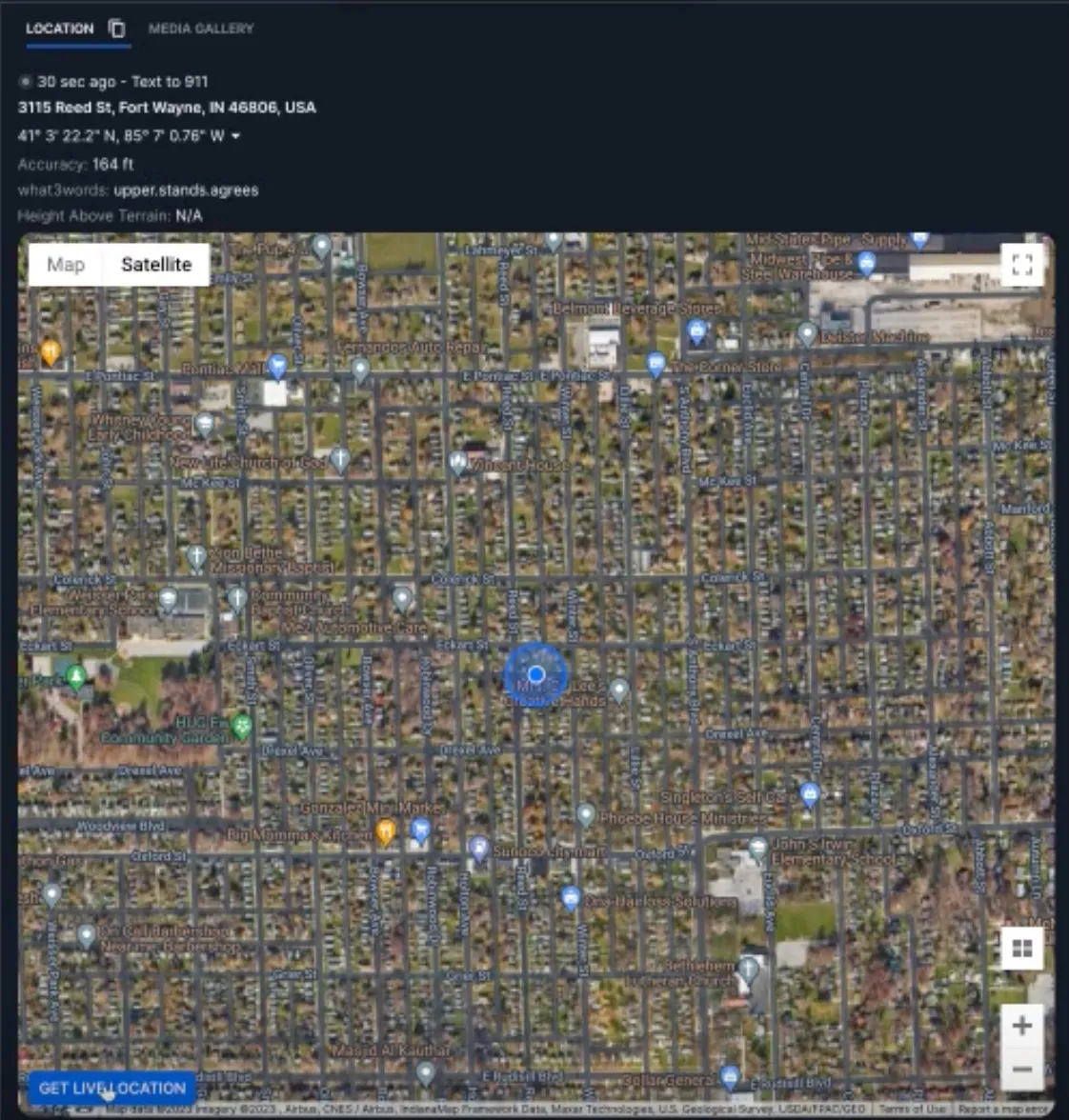
Once the button is clicked, you can track whether the link has been opened and if the device has granted location access.
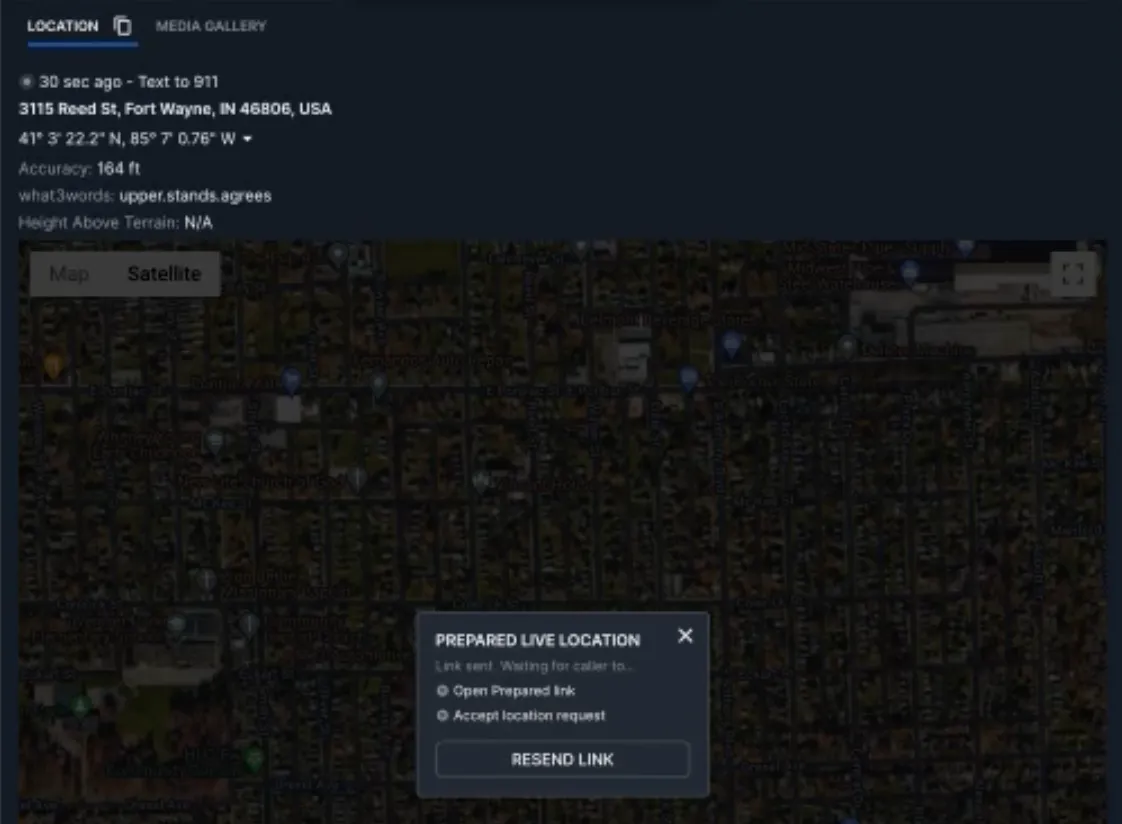
If the location request is not accepted, you can click the ‘Get Help’ button to use the Helper Bot to guide the caller through the process of granting location access.
Once access is granted, the location source label changes to ‘Live’, and you can view the live location.
Here’s a demo of the multi-source location feature:
FAQ
Question | Answer |
|---|---|
What if the location data does not show up? | Ensure that the integration with partner tools is properly set up and that location permissions are enabled on the caller's device. |
Can I track the location after the call has ended? | Yes, you can track the location even after the call ends by enabling Prepared's live location feature. |
Can I use the multi-location feature with other tools? | Currently, the multi-location feature works with partner tools that provide location data. |
What happens if the caller does not grant location access? | If the caller denies location access, you can guide them through the steps to enable it using the ‘Get Help’ feature. |
Is the multi-location feature available for all users? | The location from partner tools is available for free, while additional location features may require a subscription. |
Support & Additional Resources
Contact Prepared Support: Support@prepared911.com