
Adding/Managing Users
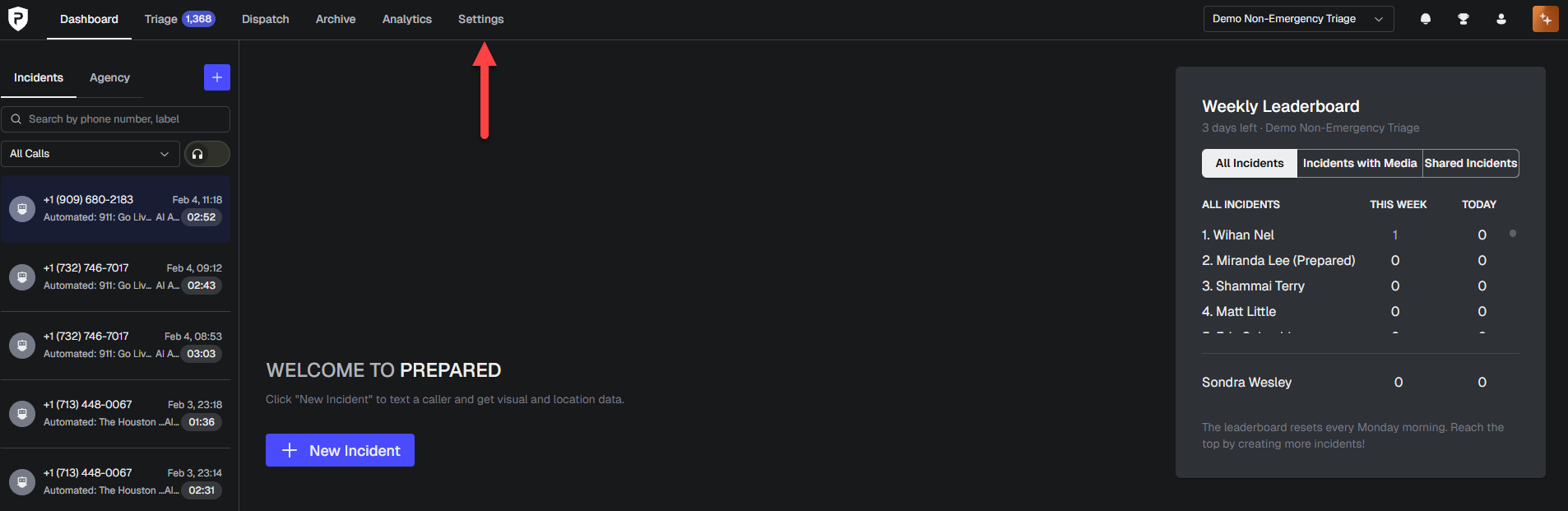
Go to Settings.
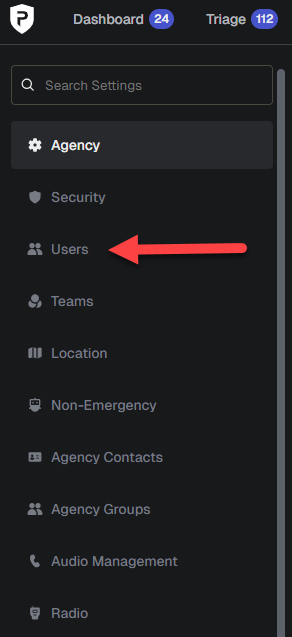
Select Users

Click Add Users.
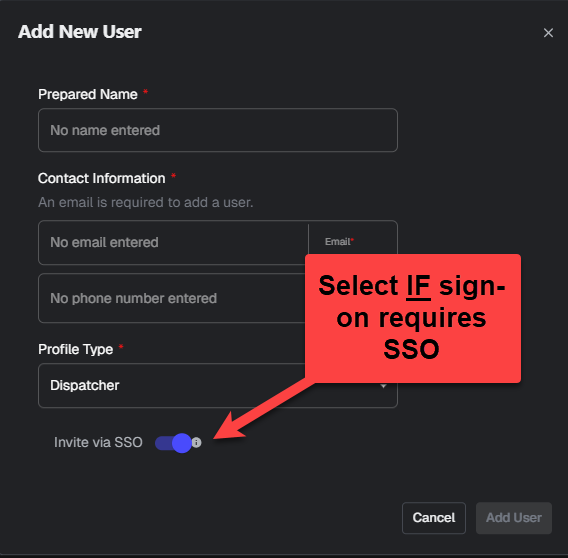
Enter the user’s name, email address, and phone number.
Select a profile type:
Dispatcher
Calltaker
Supervisor
Administrator
Choose how the user will sign in:
Single Sign-On (SSO), or
Username and password
Click Add User.
The user receives an email with login instructions.
Important
After creation, you can edit the name and phone number only.
To change an email address, you must delete the user and re-add them.
Add Users with a CSV File (Bulk Upload)
Use a CSV file to add multiple users at once.
Download the CSV Template
Always start with the CSV template provided in Prepared.
Go to Settings → Add Users.

Download the template.
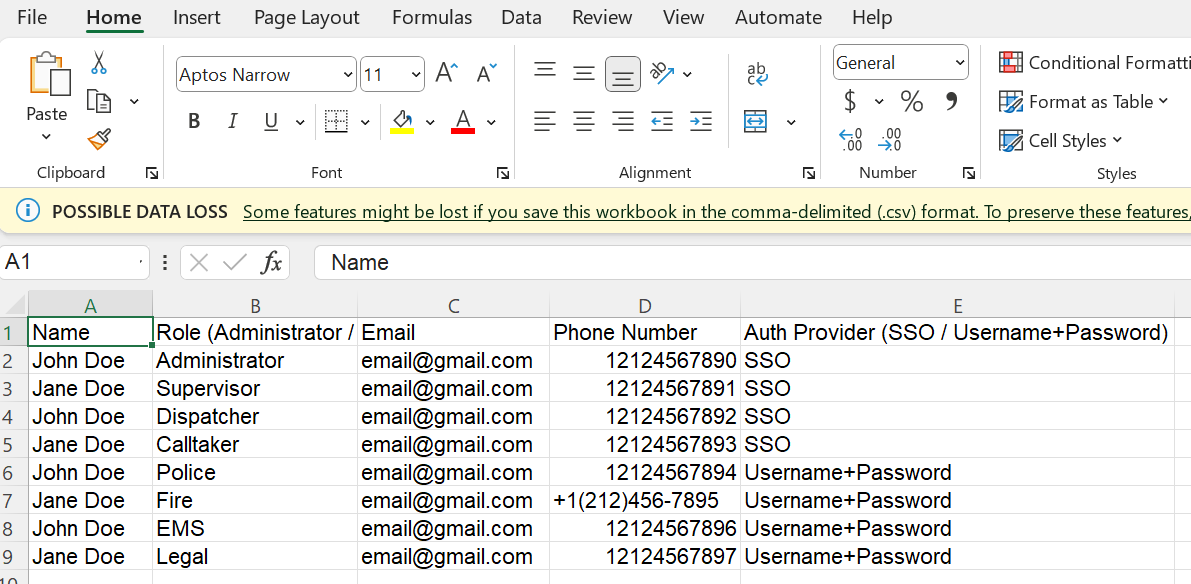
Complete the CSV File
Enter one user per row.
Required Fields
First Name
Last Name
Email Address
Phone Number
Profile Type
Dispatcher
Calltaker
Supervisor
Administrator
CSV Rules (Read Before Uploading)
Follow these rules exactly to avoid upload errors:
Do not delete or rename column headers
Do not delete any columns, even if they are empty
Do not change the order of columns
Do not add new columns
Do not use formulas or special formatting
Use plain text only
Use a unique email address for each user
Save the file as .csv
If these rules are not followed, the upload will fail.
Upload the CSV
Save the completed file as a .csv.
Upload the file in Prepared.
Review any validation messages.
Confirm the upload.
Users receive an email with login instructions after a successful upload.
After Users Are Added
Call Audio must be enabled for dispatchers to view and access audio calls in their dashboard.
Common CSV Errors
Error | What It Means | How to Fix It |
“Invalid file format” | The file is not saved as a CSV | Re-save the file as .csv |
“Missing required column” | A column header was renamed or removed | Re-download the template and start over |
“Unexpected column found” | Extra columns were added | Remove added columns and retry |
“Invalid profile type” | Profile name does not match an accepted value | Use: Dispatcher, Calltaker, Supervisor, or Administrator |
“Duplicate email” | An email already exists in the system | Use a unique email address |
“Upload failed” | File formatting was changed | Ensure no columns were deleted, reordered, or formatted |
Need Help?
If you continue to see errors or have questions about uploading users, contact Support@prepared911.com.