
View Call and Radio Traffic in One Screen
Product: Prepared Assistive Dispatch
Feature: Unified Call & Radio View (Single Pane of Glass)
Audience: Call Takers, Dispatchers, Supervisors, Administrators
Last Updated: 04/10/2026
Support: Support@prepared911.com
Outcome
By the end of this guide, you will be able to monitor radio traffic and view call details at the same time, allowing you to make faster decisions without switching between screens.
Overview
The Unified Call & Radio View brings together radio traffic and call information into a single workspace.
Previously, you had to switch between:
The Dashboard (radio traffic)
The Dispatch view (call details)
Now, you can:
Monitor live radio traffic
View active and incoming calls
Access call details, summaries, and location data
—all within one screen.
This reduces task switching and improves situational awareness during active incidents.
Prerequisites
Before using this feature, ensure:
You are logged into the Prepared platform
You have access to Assistive Dispatch
Radio transcription is enabled for your agency
How to Access the Unified View
Log in to your platform
Navigate to the Dispatch workspace
Open an active incident or call
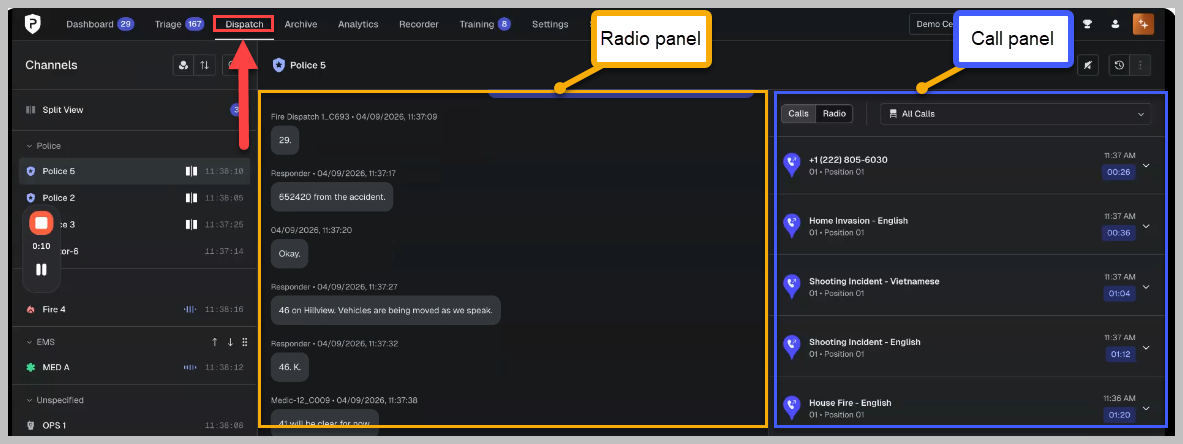
You will now see:
Radio transcription displayed in the main view
Call details panel available within the same screen
How to Monitor Radio and Calls at the Same Time
Locate the radio transcription feed in the main panel
Review incoming radio updates in real time
Use the call panel to:
View active calls
Select a call to open its details
Result: You can monitor both radio and call activity without switching tabs.
How to View Call Details While Monitoring Radio
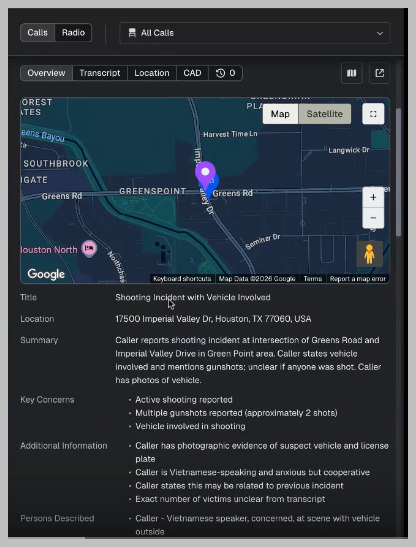
Select a call from the call list
Review the following details within the same screen:
Call summary
Transcript
Location information
Map view (if enabled)
CAD details (if available)
Continue monitoring radio traffic while reviewing the call
How to Navigate Between Calls
In the call panel, select a different call
The system updates the call details instantly
Continue monitoring radio traffic without interruption
Use this when: You want to preview upcoming calls or quickly shift focus.
How to Customize Your View
You can adjust what information is visible based on your workflow.
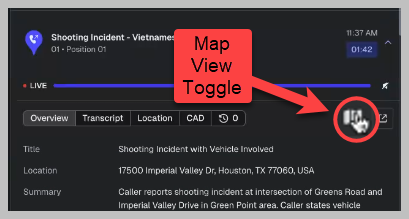
To show or hide elements (example: Map View):
Locate the map or panel section
Collapse or hide the element
The system will remember your preference when you move between calls.
How to Use Audio Playback with Transcription
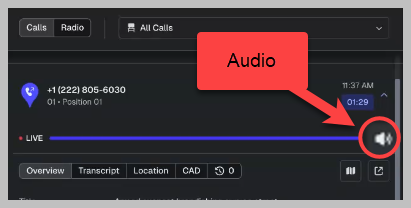
Open a call
Press Play on the call audio
Follow along with the transcription as it plays
Result: You can listen and read simultaneously while staying in the same workspace.
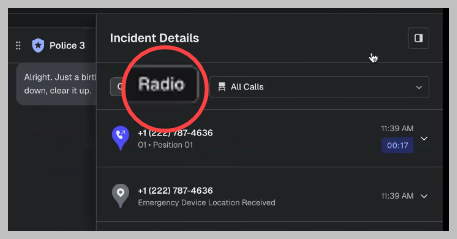
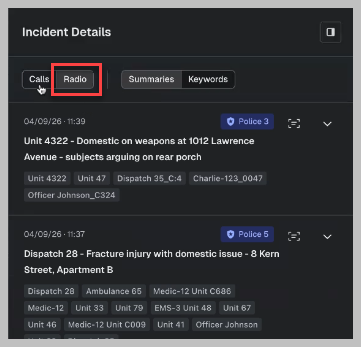
How to Switch to Radio-Only View (Optional)
Locate the view toggle
Select Radio Incidents
This allows you to focus only on radio traffic when needed.
Best Practices
Keep both views active during high call volume to maintain awareness
Use call previews to prepare for incoming incidents
Reference call summaries when officers request additional details
Customize your layout to reduce visual clutter and match your workflow
FAQs
Question | Answer |
|---|---|
Do I still need to switch between tabs? | No. You can now view radio and call data in one screen. |
Will my layout reset when I switch calls? | No. Your preferences (such as hiding the map) are remembered. |
Can I still view only radio traffic? | Yes. You can toggle to a radio-only view at any time. |
Can I listen to calls in this view? | Yes. Audio playback is available alongside transcription. |
What if CAD data is available? | CAD details will appear within the same call view when available. |
Support & Additional Resources
If you need help or want to provide feedback: