
Automated Email
Overview
The Automated Email feature introduces a new “Send Email” action in ANET, allowing you to automatically notify stakeholders who do not have access to the platform.
This feature is designed to reduce unnecessary call transfers and streamline follow-ups by delivering key call information directly via email.
Outcome
By using this feature, you can:
Notify external or low-bandwidth stakeholders without transferring calls
Share critical call details quickly and consistently
Reduce manual follow-up effort
How It Works
When enabled, ANET automatically sends an email at the end of a call using a predefined template combined with an AI-generated call summary.
Quick Setup
Select Action
Choose “Send Email – End of Call”
Select or create a contact with a valid email address
Select or create an email template
Read more below on HOW TO CONFIGURE
What Gets Sent
Each automated email includes the following components:
From Address:
no-reply@prepared911.comIntro Message:
A fixed introduction explaining that the message is an automated notification from PreparedEmail Body:
Your selected email template content
An AI-generated summary of the call
Key Details
Emails are sent automatically at the end of the call
The AI-generated summary reflects key details captured during the interaction
Templates ensure consistent communication across stakeholders
Best Practices
Use clear, concise templates that focus on actionable information
Verify contact email accuracy before enabling the action
Tailor templates for different stakeholder types (e.g., field responders, partner agencies)
Avoid including sensitive data unless necessary and compliant with policy
Common Use Cases
Notifying partner agencies without ANET access
Sending summaries to field personnel with limited connectivity
Providing follow-up details to administrative stakeholders
FAQ
Question | Answer |
|---|---|
When is the email sent? | Automatically at the end of the call once the action is configured |
Can I customize the email content? | Yes, using templates. The AI-generated summary is automatically appended |
Who receives the email? | The contact selected during setup |
Can I change the sender address? | No, emails are sent from |
What if the contact does not have an email? | The action will not function; a valid email is required |
HOW TO CONFIGURE
Similar to any other ANET action (canned message, transfer, etc.), select:
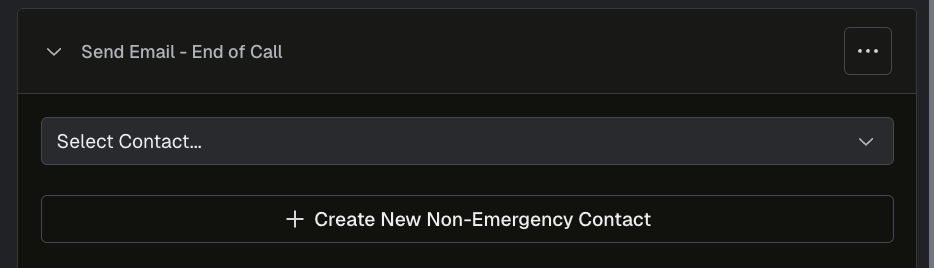
Action> ‘Send Email - End of Call’
You will be presented with 2 required data fields
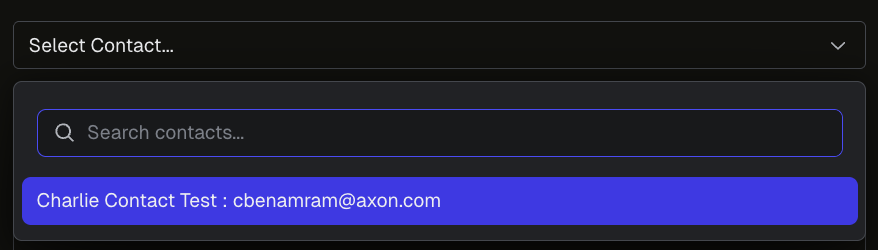
Select ContactSimilar to configuring a transfer tied to a phone number, we need to configure an email action tied to an email address. You have two options
Option A: Select a previously configured contact with the email address via ‘
Select Contact’ > dropdown of eligible email contacts
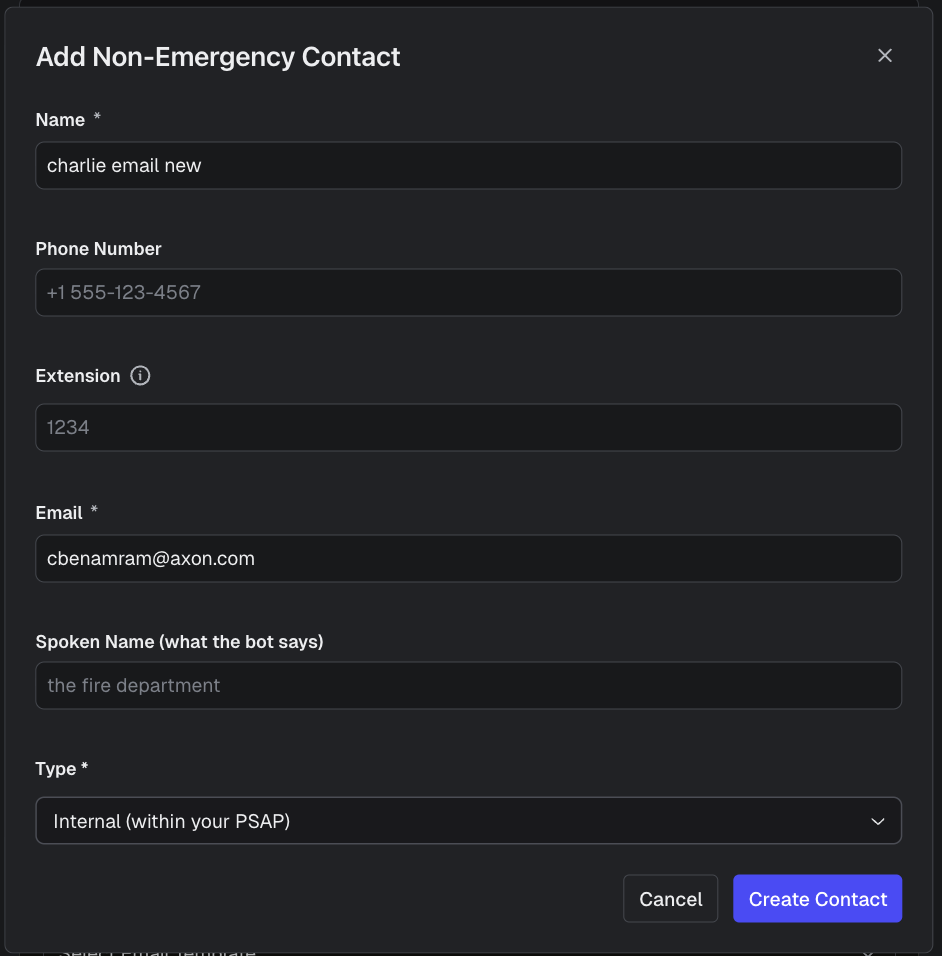
Option B: Create a new contact with the relevant email address:
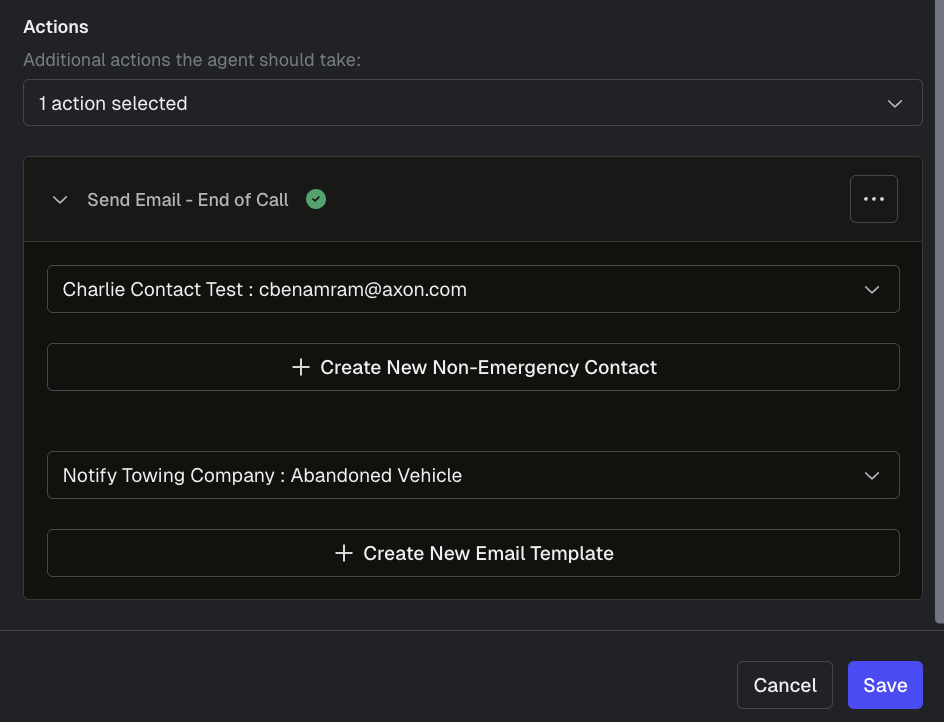
Select Email Template (this template can be detailed or brief and is akin to a canned message template)

Option 1: Select existing email template
Option 2: Create a new email template
Successful configuration of an email includes both an email address and an email template
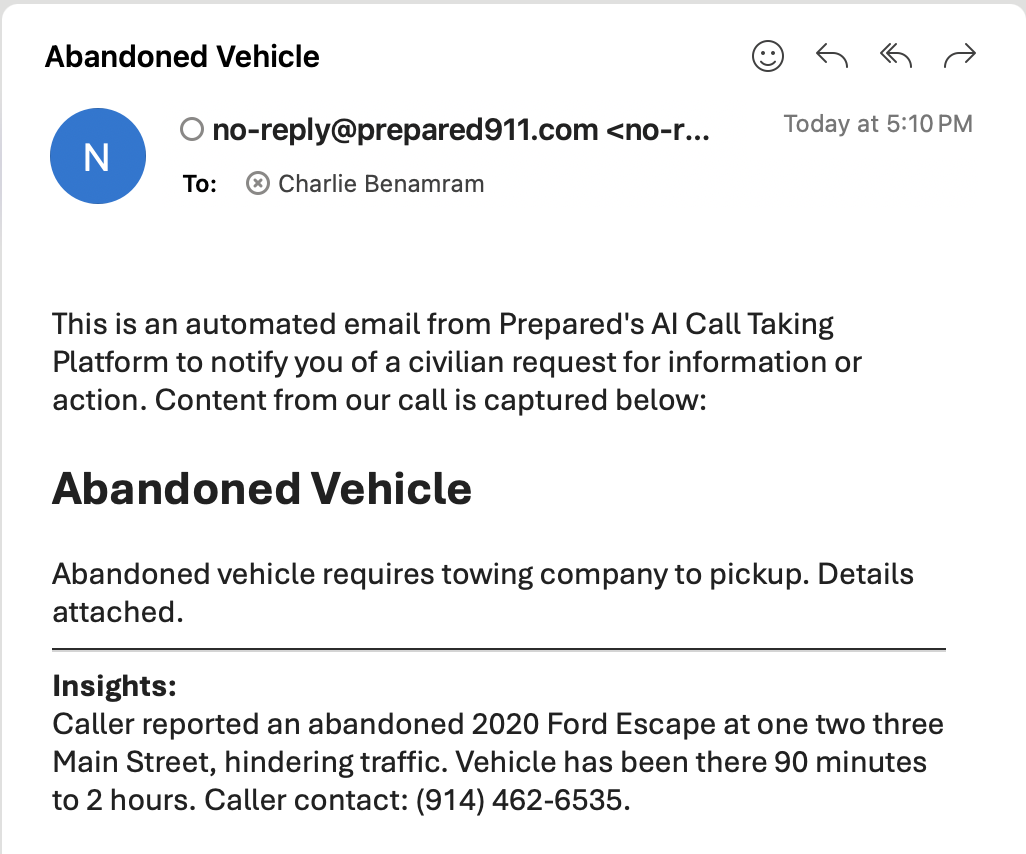
WHAT THE EMAIL RECIPIENT SEES
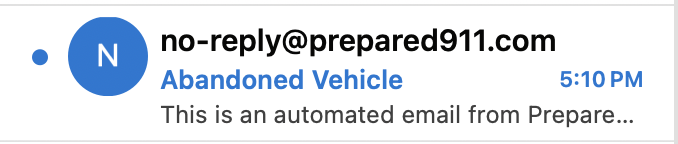
Email Source: no-reply@prepared911.com
Subject: displayed per email template
Email content:
Fixed: “This is an automated email from Prepared’s AI Call Taking Platform to notify you of a civilian request for information or action. Content from our call is captured below:”
Email Template Name
Email Template Body
AI-Generated Call Summary
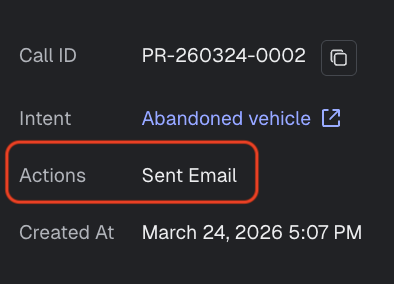
RELEVANT CHATROOM DETAILS
‘Sent Email’ action displayed in the insight summary
Support & Additional Resources
For questions or assistance, contact: Support@prepared911.com