
PSAP Connection
Product: Prepared ACT
Audience: Call Takers, Dispatchers, Supervisors, Administrators
Last Updated: 03/04/2026
Support: Support@prepared911.com
Establish and Use PSAP Connections
Outcome
By the end of this guide, you will be able to:
Request a PSAP connection.
Confirm connection status.
Share call information with a connected PSAP partner.
Overview
PSAP Connections allow you to securely share call information with partner agencies. A connection must be requested and approved by both parties before call sharing is available.
Once a connection is active, you can share calls directly from the dashboard using the Manage menu.
How Automatic Sharing works
“Automatic sharing” in Prepared usually refers to PSAP-to-PSAP Call Sharing, where call context is shared between two connected PSAPs without a calltaker having to click “share” every time.
What it does
When Automatic Sharing is enabled for a PSAP Connection, Prepared can automatically share call context between the two connected PSAPs in certain scenarios (for example, overflow or failover patterns).
Practically, that means both PSAPs can see the shared call context in Prepared without requiring a manual share for each event.
What it does not do
It is not a “share everything with everyone” model.
Sharing is limited to what the PSAP-to-PSAP logic determines should be shared, and it occurs only through the defined mechanisms (e.g., failover detection), with manual sharing still available.
The connection itself is opt-in on both sides.
How it decides when to auto-share (geofence-based)
The internal “Automatic Data Sharing for load-balanced / overflow calls” concept describes the core logic as:
If a call being processed is identified as within another PSAP’s boundary, Prepared can share the call with that PSAP in real time and visually distinguish it as “answered by another PSAP on your behalf.”
There is also an implementation note in Linear about auto-sharing when a chatroom matches both:
one PSAP’s extended boundary, and
another PSAP’s geofence boundary.
In practice, this means:
Both PSAPs can see shared call context in Prepared without requiring a manual share for each event.
Sharing remains limited to scenarios governed by the PSAP-to-PSAP sharing logic and the connection relationship.
It is still not a “share everything with everyone” model. Sharing occurs only through the defined mechanisms (failover detection and manual sharing), and the connection itself remains opt-in on both sides.
Part 1: Request a PSAP Connection
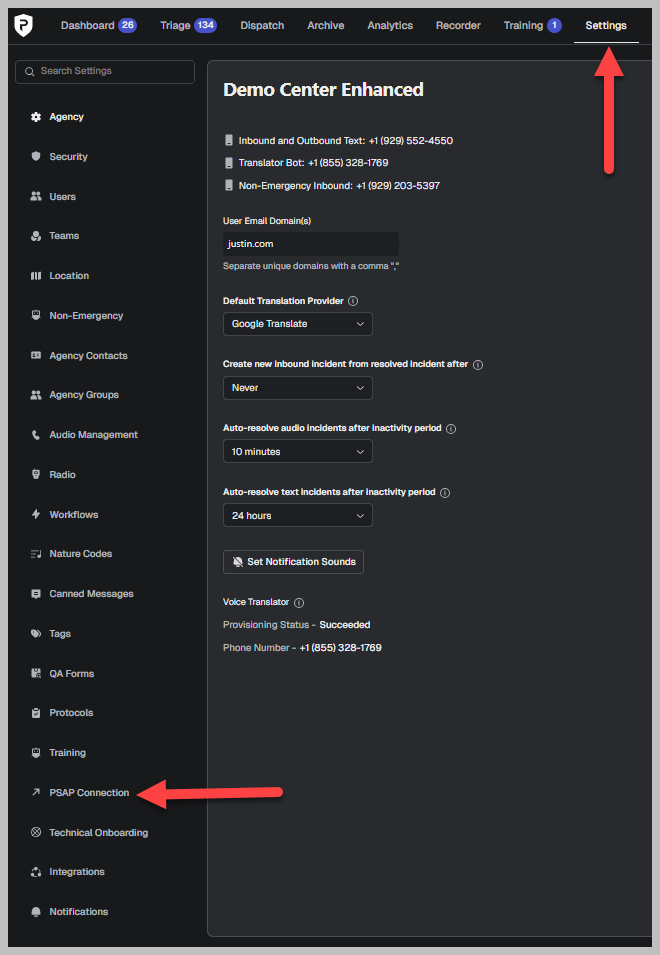
Navigate to the PSAP Connection Settings
Click Settings at the top center of your screen.
In the left panel, select PSAP Connection.
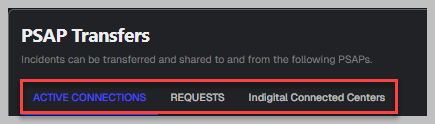
Under PSAP Transfers, you will see three tabs:
Active Connections
Request
Other Integrations
Submit a Connection Request
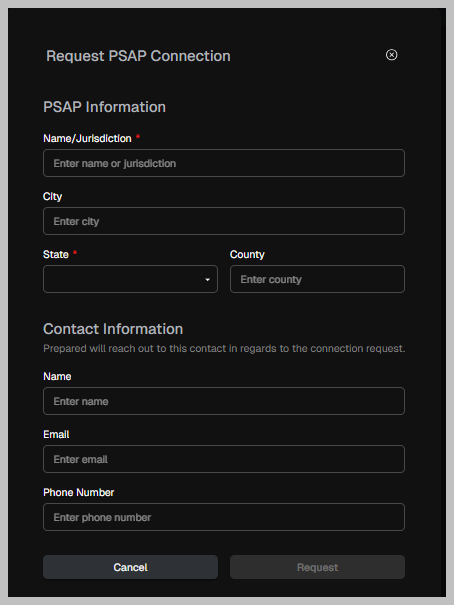
Click Request Connection in the top right corner.
Complete the required fields:
Name or Jurisdiction
City
State (required)
County
Additional contact information (if needed)
Click Request in the bottom right corner.
The selected PSAP will receive your request.
View Submitted Requests
Select the Request tab under PSAP Transfers.
Review pending or previously submitted requests.
To submit another request, click Request Connection in the top right corner.
A connection becomes active only after both agencies approve the request.
Part 2: Share a Call with a Connected PSAP
Once the connection appears under Active Connections, you can share calls.
Share a Call
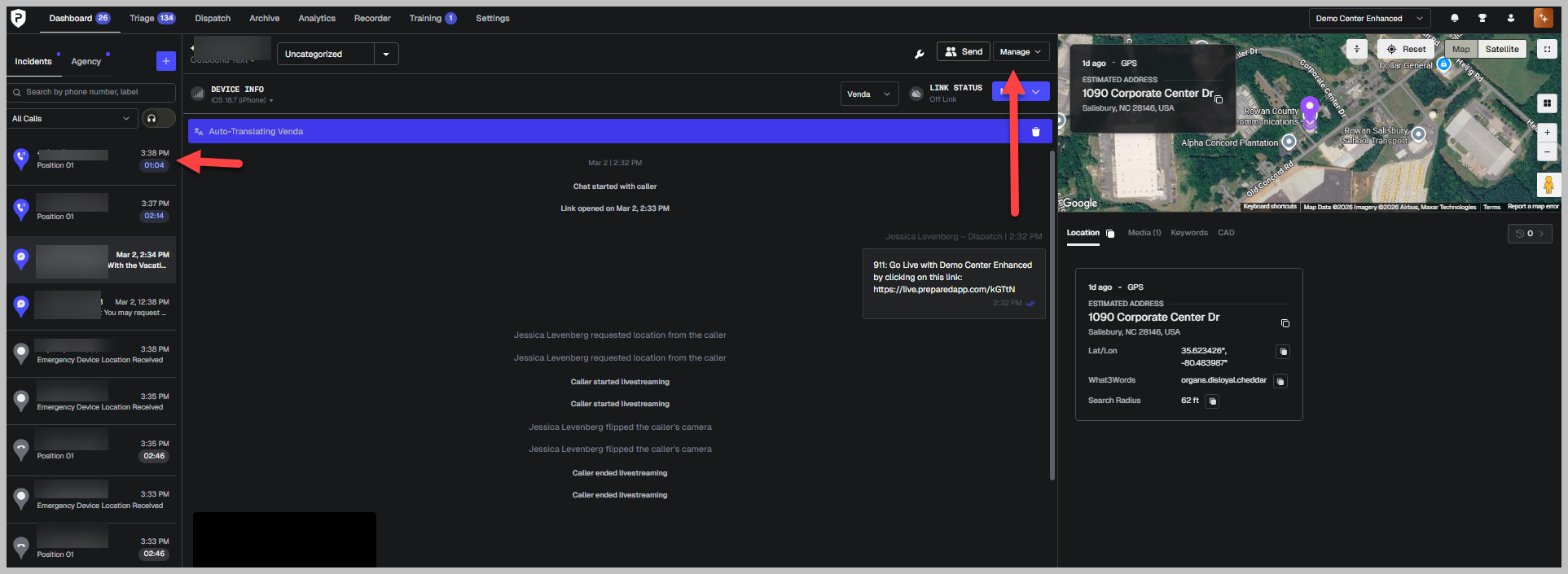
From the Dashboard, select the call you want to share.
Click Manage near the top center of the screen.
Select Share with PSAP Partner from the dropdown menu.
Search for the appropriate connected PSAP in the dropdown list.
Select the PSAP.
Click Share.
The call information is immediately shared with the selected PSAP partner.
Best Practices
Confirm the correct PSAP before clicking Share.
Verify connection status under Active Connections if the PSAP does not appear in the dropdown list.
Keep contact information updated to prevent connection delays.
FAQs
Question | Answer |
Why don’t I see a PSAP in the dropdown list? | The connection has not been approved by both agencies. Confirm status under Active Connections. |
Can I cancel a request? | You can review pending requests under the Request tab and manage them based on your permission level. |
Is the shared information secure? | Yes. Information is shared only between approved PSAP connections within the platform. |