
Notifications
Status Email Notifications
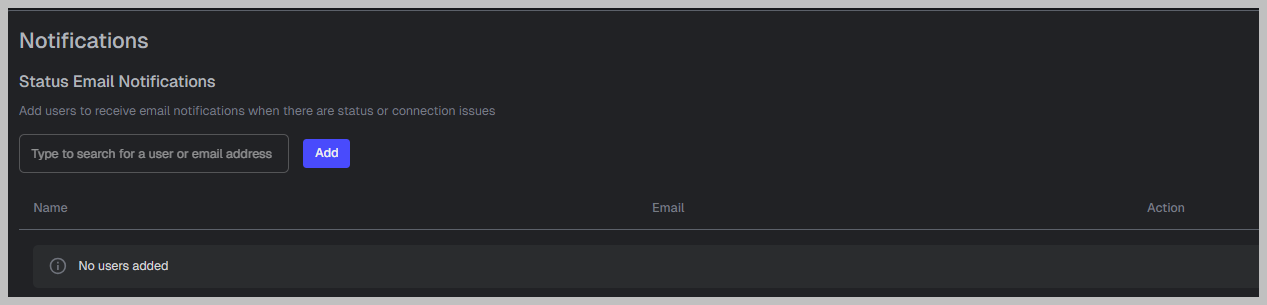
What it does
Adds recipients who get email alerts for status/connection issues (health notifications).
How to use it
Type a user name or email.
Click Add.
Confirm the user appears in the table.
Table fields
Name
Email
Action → Remove
Best practice
Add at least:
Primary ACT admin
Backup admin/supervisor
Technical contact (if different)
FAQs
Question | Answer |
Why can’t a user log in after we changed Security settings? | Most Security changes apply immediately. If IP restrictions are enabled, confirm the user is on an approved network/IP. If MFA is required, confirm the user can complete the MFA step. |
Our Users CSV upload failed—what’s the fastest fix? | Re-download the template from ACT, do not rename/reorder headers, and confirm required fields are present. Most failures come from altered headers, formatting, or unsupported values. |
Why do team filters look empty? | Team-based filtering is most reliable for activity after teams are created and membership is current. Confirm users are assigned to the correct team and check newer incidents first. |
Should we enable Auto-apply with AI for Tags immediately? | Usually no. Keep it OFF until tag definitions are tight, then run a short review period with a supervisor to confirm accuracy before turning it ON permanently. |
What settings should we avoid changing without guidance? | Advanced technical settings (for example, SIP header filters or automatic call transferring areas) can affect call visibility and routing. Change those only with Prepared Support/Implementation guidance. |