
Canned Messages
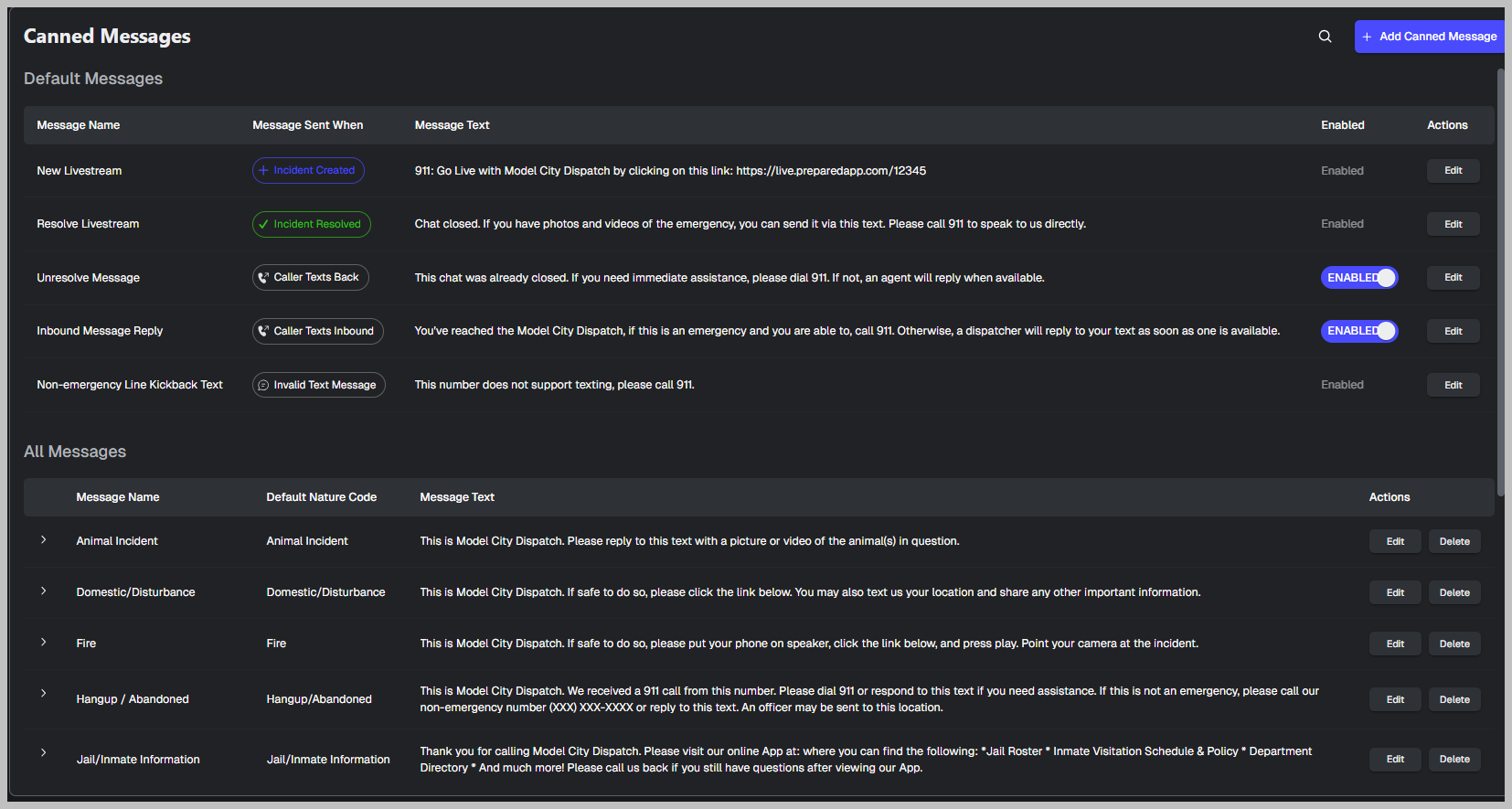
Canned Messages are approved templates ACT can send automatically (via Workflows) or manually.
Default Messages (system templates)
Columns:
Message Name
Message Sent When
Message Text
Enabled
Actions → Edit
Common triggers shown:
Incident Created
Incident Resolved
Caller Texts Back
Caller Texts Inbound
Invalid Text Message
Customer guidance
Only enable default messages you truly want automated (these can message the public without dispatcher review).
Keep the text short, plain language, and action-first.
All Messages (custom message library)
Use Chat Preview to catch length and clarity issues.
Getting Started:
1. Access Settings: Begin by clicking on the Settings tab at the top of the screen.
2. Enter Workflows: Select Workflows from the options on the left side of the screen. Here, you'll find the tools to customize workflows for your jurisdiction.
Creating A New Workflow:
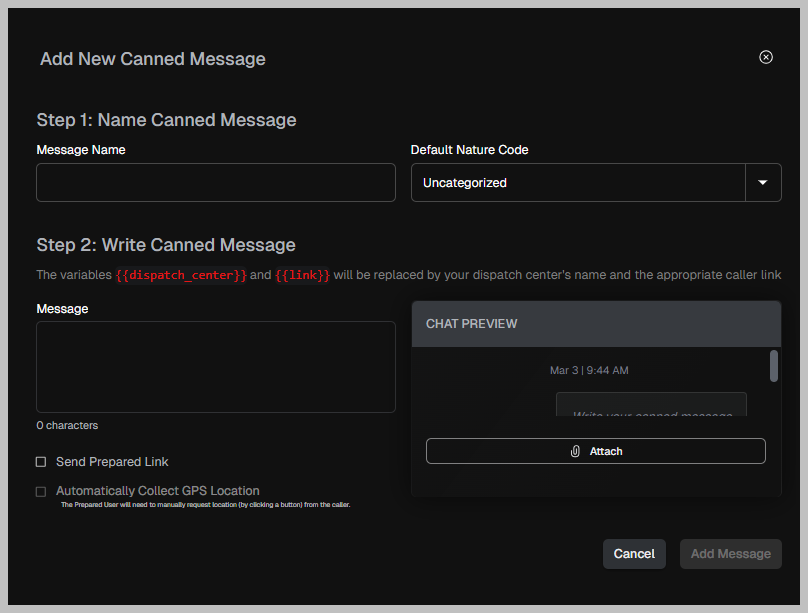
Creating a workflow is a straightforward process:
1. Initiate Workflow Creation: Click on the Add Workflow button, located at the top right corner of the screen, and select Create New.
2. Name Your Workflow
3. Select a Trigger: You can choose from Keyword Detected, Nature Code, and No Activity in Incident. Avoid long phrases to prevent missing triggers. Short, relevant keywords yield better results. You have the option to trigger notifications based on whether the caller, the dispatcher, or either mentions the keyword. Consider your needs when setting this preference.
Configuring the Workflow:
After selecting your trigger, it's time to define the action:
1. Choose an Action: You can choose from Send Canned Message, Flag Incident for Supervisors, Resolve Incident, and Send Email Notification. Note: When creating an Email Workflow, the recipient will see the trigger, when it was triggered, which center this is coming from, and the location of the incident. Recipients also can “View in Prepared”, which would take them directly to the incident in Prepared, if they have an account. If they do not have a Prepared account, they are able to request access to Prepared, which will then send an email to the center's Administrator prompting the Admin to add the recipient as a User in Prepared.
2. Finalize the Workflow: Once you're satisfied with your settings, click Create to finalize the workflow.